Author: h9sgm3ot1owl

  • SLID-on-Microcontrollers

    SLID on a microcontroller

    For the ETHZ course of Machine Learning on Microcontrollers we had to come up with a project idea that uses a neural network which can run on a STM32 UC with limited resources (64kB RAM, 1 Core running at 80MHz). We decided to use the onboard microphone and detect spoken languages in real-time.

    Project Overview

    Signal Processing and Feature Extraction

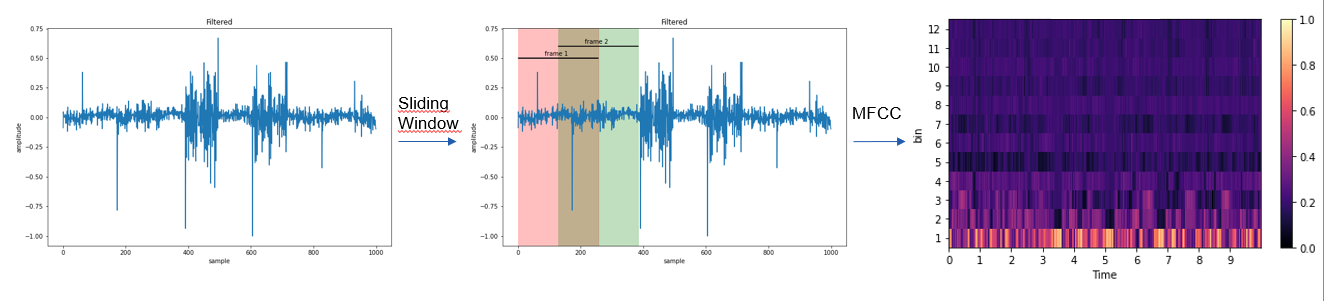
    The onboard microphone samples the audio at about 8kHz which was found to be enough, since human speech is mainly in region of 200Hz-4kHz. But even at 8kHz the RAM is filled very fast. Hence, we calculated MFCC features every 256 samples with an overlap of 50%. 12 mel-bins are used, and we aggregated 625 frames before making inference, which is about 10 seconds of speech. image Since this needs to be done in real-time, CMSID-DSP was used which can calculate the MFCC features in Q15 very fast. It has a python wrapper which we used to train the network on the right features already, because they differ a lot from librosa or pytorch implementations! The model was trained using keras and converted to a fully quantized int8 network with tensorflow-lite. This reduced the weight size from 2523 kB to 651 kB while the accuracy only decreased by 0.03%.

    Convolutional Neural Network

    We used a simple CNN, because the network weights need to fit on the ram during inference. The dataset was the Kaggle SLID dataset, where we had several papers as a baseline. image

    Model comparison

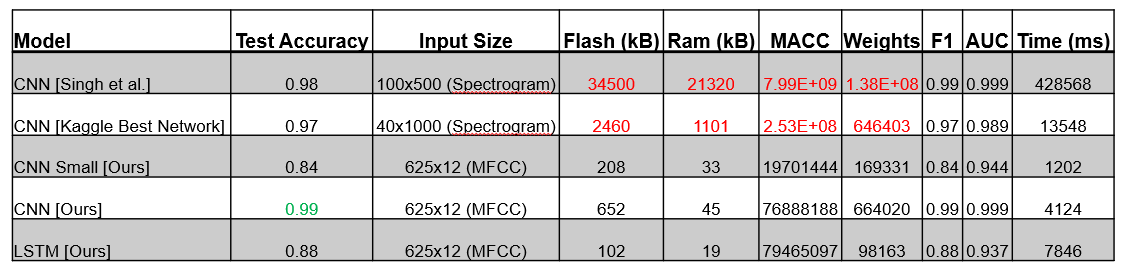
    We wanted to compare our model accuracy with other model types and implementations from other papers. In the following table one can see different important factors, such as Flash and RAM needed, which is our main constraint. Luckily our model performed extremely well on the dataset despite its small size while having an inference time of about 4 seconds. image

    Prerequisites

    The project was developed on Windows 10. You will need CubeIDE with the Ai Extension. To easily compile the cmsis-dsp library Ubuntu on WSL2 is used and python and anaconda is installed on the subsystem instead on Windows. All python scripts are run on WSL!

    The platform is an STM32L475.

    Installation

    • clone the repository

    From here run all commands on the Ubuntu subsystem:

    • create a new python environment on WSL using e.g. conda conda create -n slid python=3.8 and activate it conda activate slid
    • install the requirements pip install -r requirements.txt
    • download the dataset kaggle datasets download -d toponowicz/spoken-language-identification
    • extract the dataset and copy the train and test folder to the folder audio_processing
    • from the project root folder run python3 audio_processing/generate_dataset.py (this takes some time)

    Now you will find a folder names as cmsis_[sample_rate]_[num_mel_bins]_[num_mel_windows] that contains the converted mel spectograms as npz files.

    Train the network

    In the model foder you can find the config file. If you want to track training using WANDB you can put in your API key there. The root entry should be the name of the just created dataset with the npz files.

    Start the training from the project root directory with python3 models/train.py

    Once the model has been trained it will be saved as h5 file. Quantize the network with python3 models/tinify.py. This will generate a tflite model.

    Deploy

    Start CubeIDE with the CUBE-AI plugin and load the project from the CubeIDE folder. If it doesn’t work try downloading an older version. Once the upload is done, connect to the STM via serial and press the onboard button to start recording.

    This part is the most complicated as CUBE-AI seems to have its bad days often. Probably it is better to generate a new project from scratch and convert the settings and code to your version.
    Visit original content creator repository
  • LABORATORY-PASSPORT

    LABORATORY-PASSPORT

    I discover few weeks ago the library Passport.js that you can find at this URL : http://www.passportjs.org/

    It makes multiple Authentication through google, facebook, twitter and so on easy using just the ClientId and ClientSecret of the different platform.

    It becomes a must have in my toolbox for managing this kind of challenge.

    Plan

    1. How to use Passport.js
    2. How to create clientID and clientSecret for facebook
    3. How to create clientID and clientSecret for google

    How to use Passport.js

    1. Install Passport.js
    $ npm install Passport.js
    

    In the Express server, use :

    const passport = require('passport');
    
    app.use(passport.initialize());
    app.use(passport.session());
    
    passport.serializeUser(function (user, cb) {
      cb(null, user);
    });
    
    passport.deserializeUser(function (obj, cb) {
      cb(null, obj);
    });
    
    1. Install the dependencies depending of the passport we need

    facebook

    $ npm install passport-facebook
    

    google

    $ npm install passport-google-oauth
    
    1. Enable the Passport depending of the passport

    facebook

    const FacebookStrategy = require('passport-facebook').Strategy;
    
    passport.use(new FacebookStrategy({
        clientID: config.facebookAuth.clientID,
        clientSecret: config.facebookAuth.clientSecret,
        callbackURL: config.facebookAuth.callbackURL
      }, function (accessToken, refreshToken, profile, done) {
        return done(null, profile);
      }
    ));
    

    google

    const GoogleStrategy = require('passport-google-oauth').OAuth2Strategy;
    
    passport.use(new GoogleStrategy({
        clientID: config.googleAuth.clientID,
        clientSecret: config.googleAuth.clientSecret,
        callbackURL: config.googleAuth.callbackURL
      }, function (accessToken, refreshToken, profile, done) {
        return done(null, profile);
      }
    ));
    
    1. Add the ClientID and ClientSecret inside the config.js (see below how to get them)

    2. Create the route for getting the information out of the Authentication

    The scope depend of the Strategy (facebook or google…) and can be find on the documentation of the strategy (google documentation or facebook documentation…)

    facebook

    router.get('/profile', isLoggedIn, function (req, res) {
      console.log(req.user)
    });
    
    router.get('/auth/facebook', passport.authenticate('facebook', {
      scope: ['public_profile', 'email']
    }));
    
    router.get('/auth/facebook/callback',
      passport.authenticate('facebook', {
        successRedirect: '/profile',
        failureRedirect: '/error'
      })
    );
    

    google

    router.get('/profile_google', isLoggedIn, function (req, res) {
      console.log(req.user)
    });
    
    router.get('/auth/google', passport.authenticate('google', {
      scope: ['profile', 'email']
    }));
    
    router.get('/auth/google/callback',
      passport.authenticate('google', {
        successRedirect: '/profile_google',
        failureRedirect: '/error'
      })
    );
    

    How to create clientID and clientSecret for facebook

    1. First, connect to the facebook developer console : https://developers.facebook.com/

    Alt text

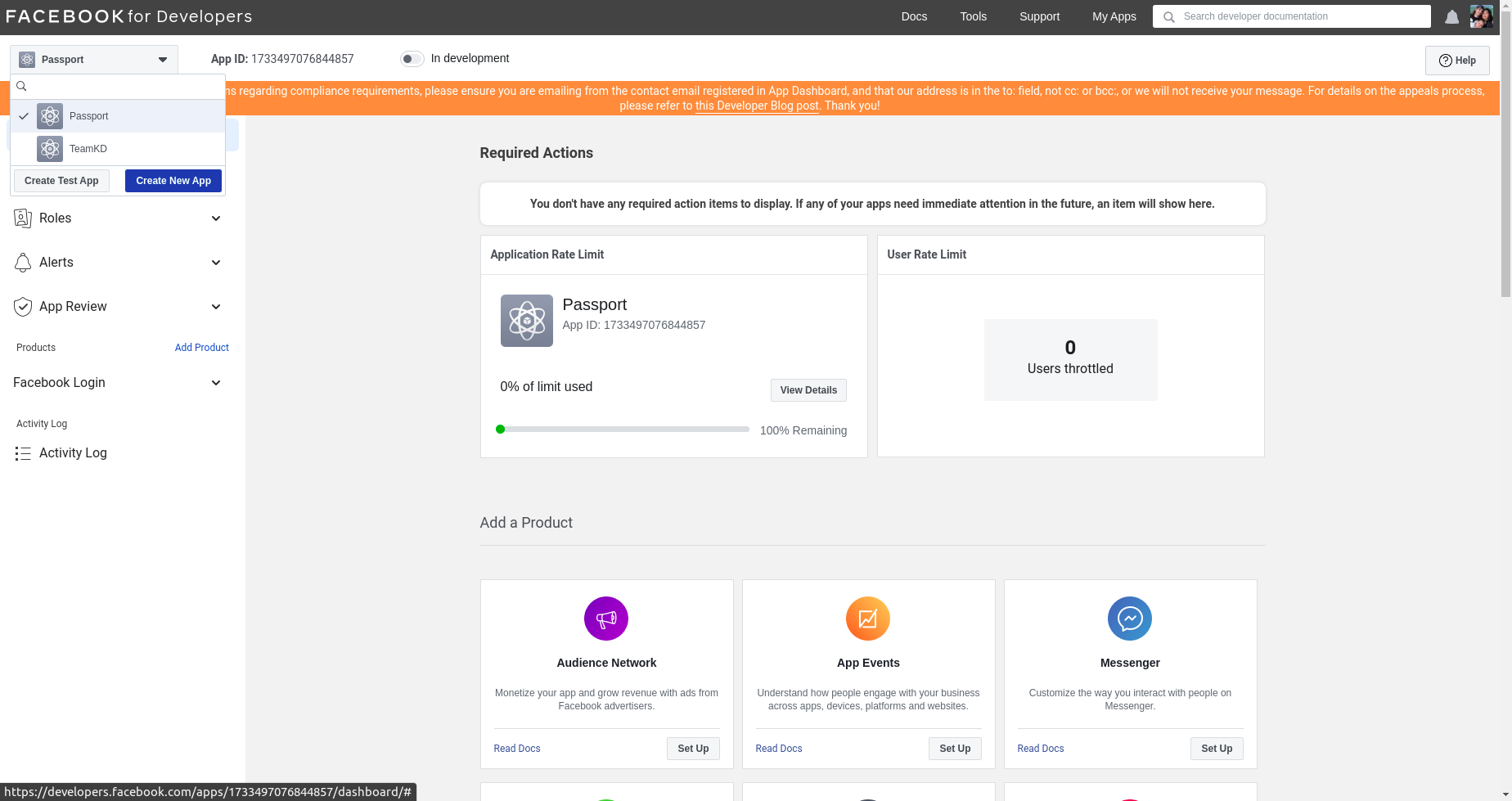
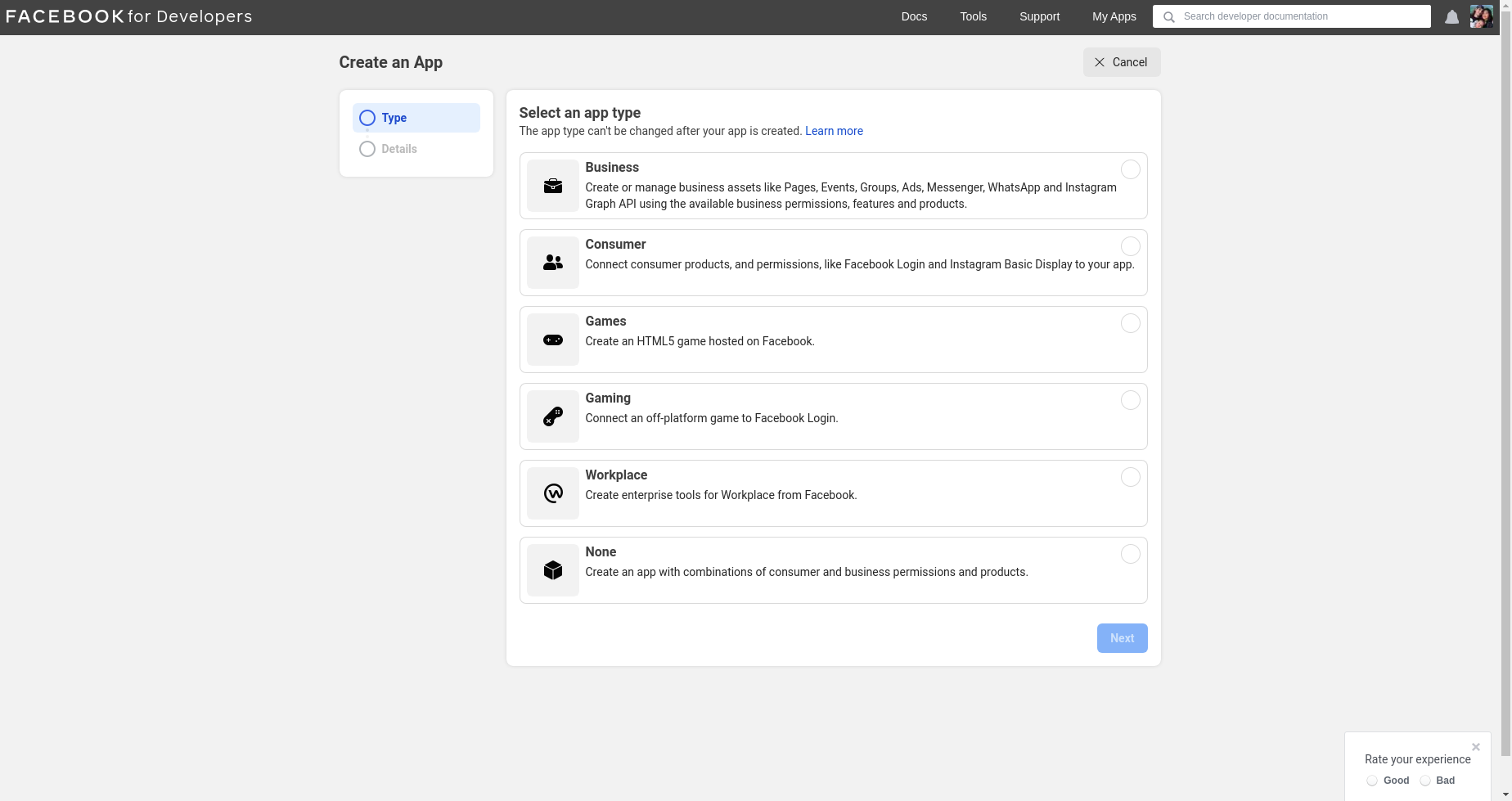
    1. Click on create a new app and choose the type of app (none in my case)

    Alt text

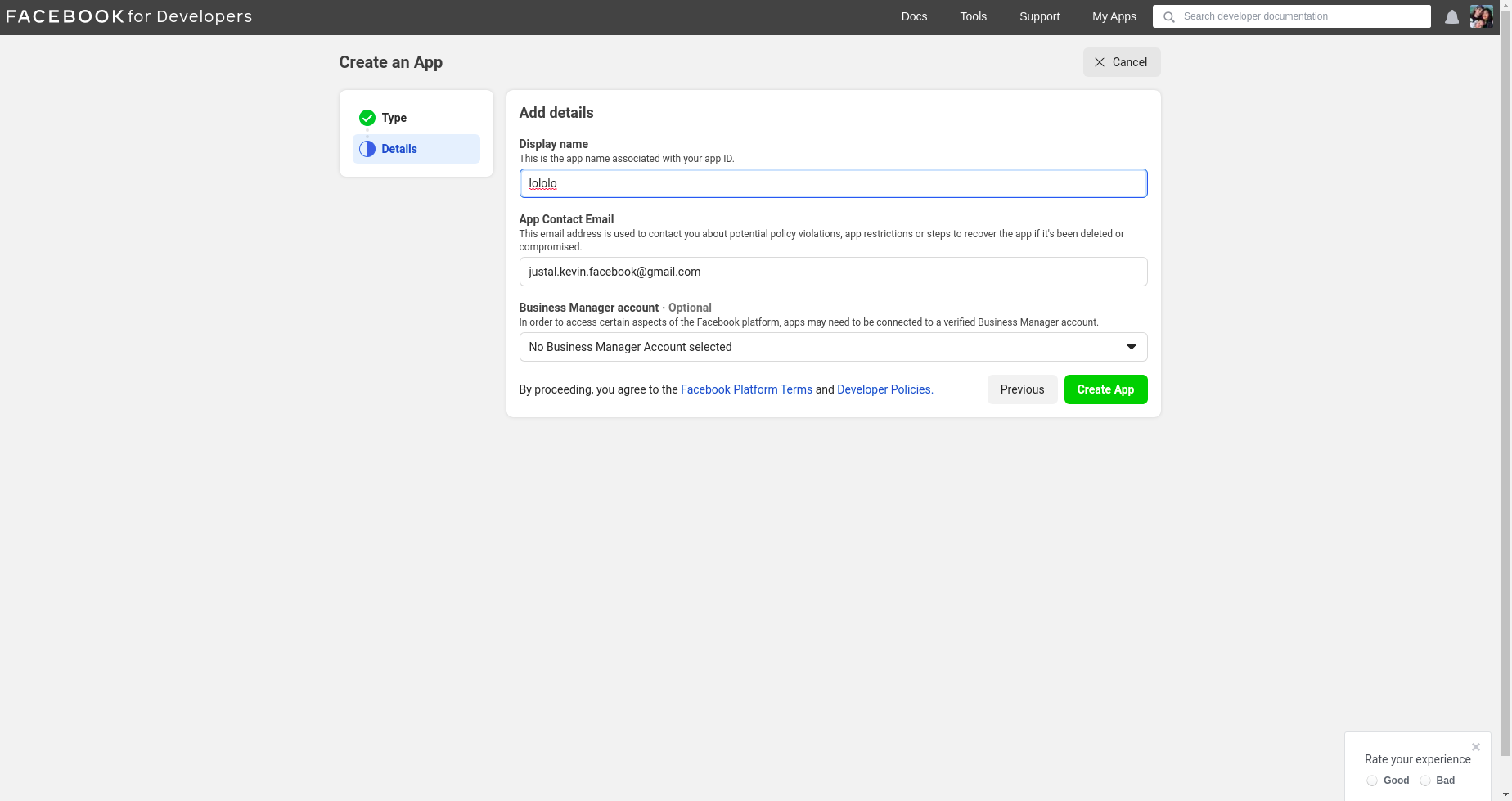
    1. Add the name to display in the facebook developer interface

    Alt text

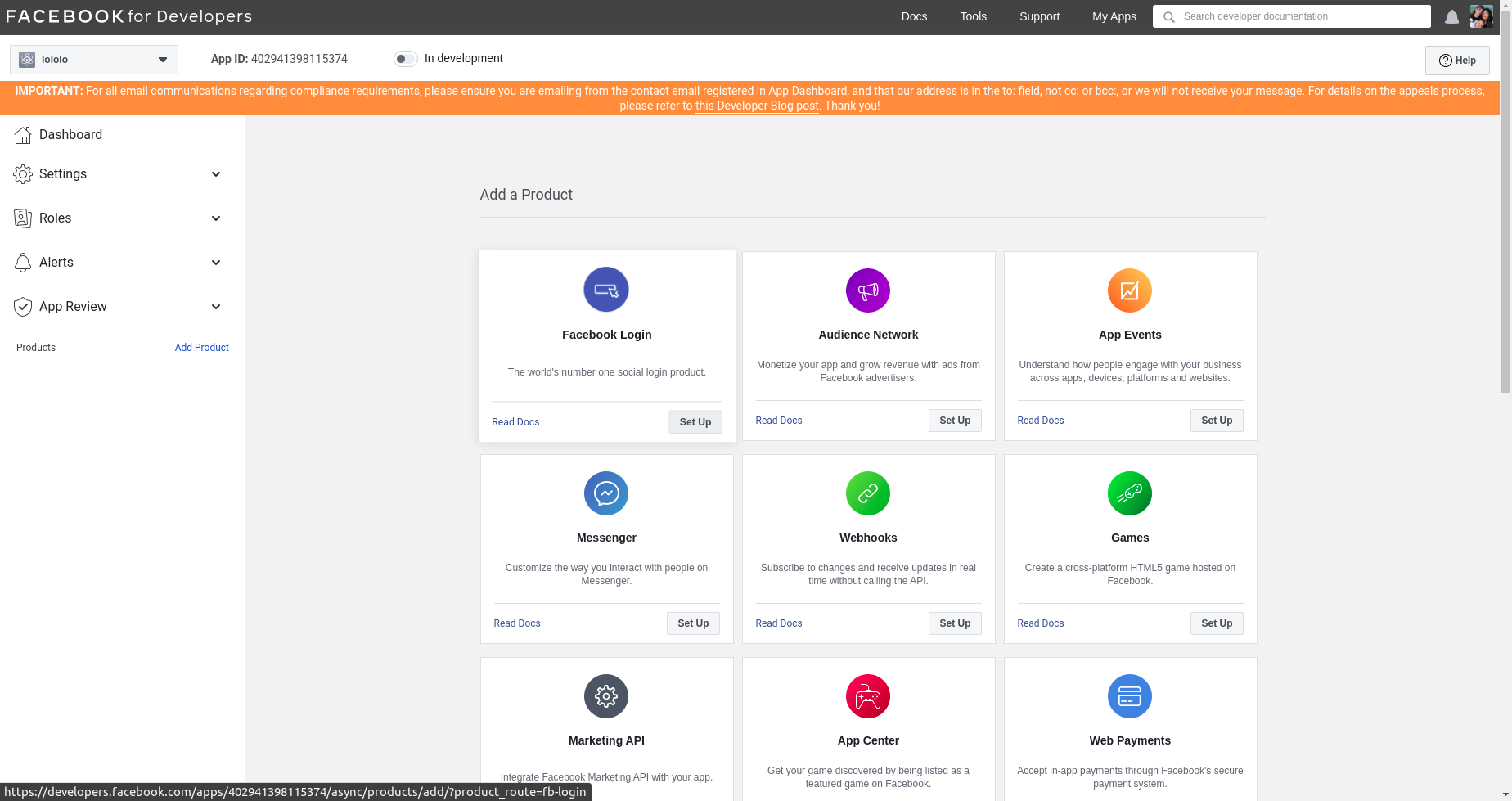
    1. Click on facebook login

    Alt text

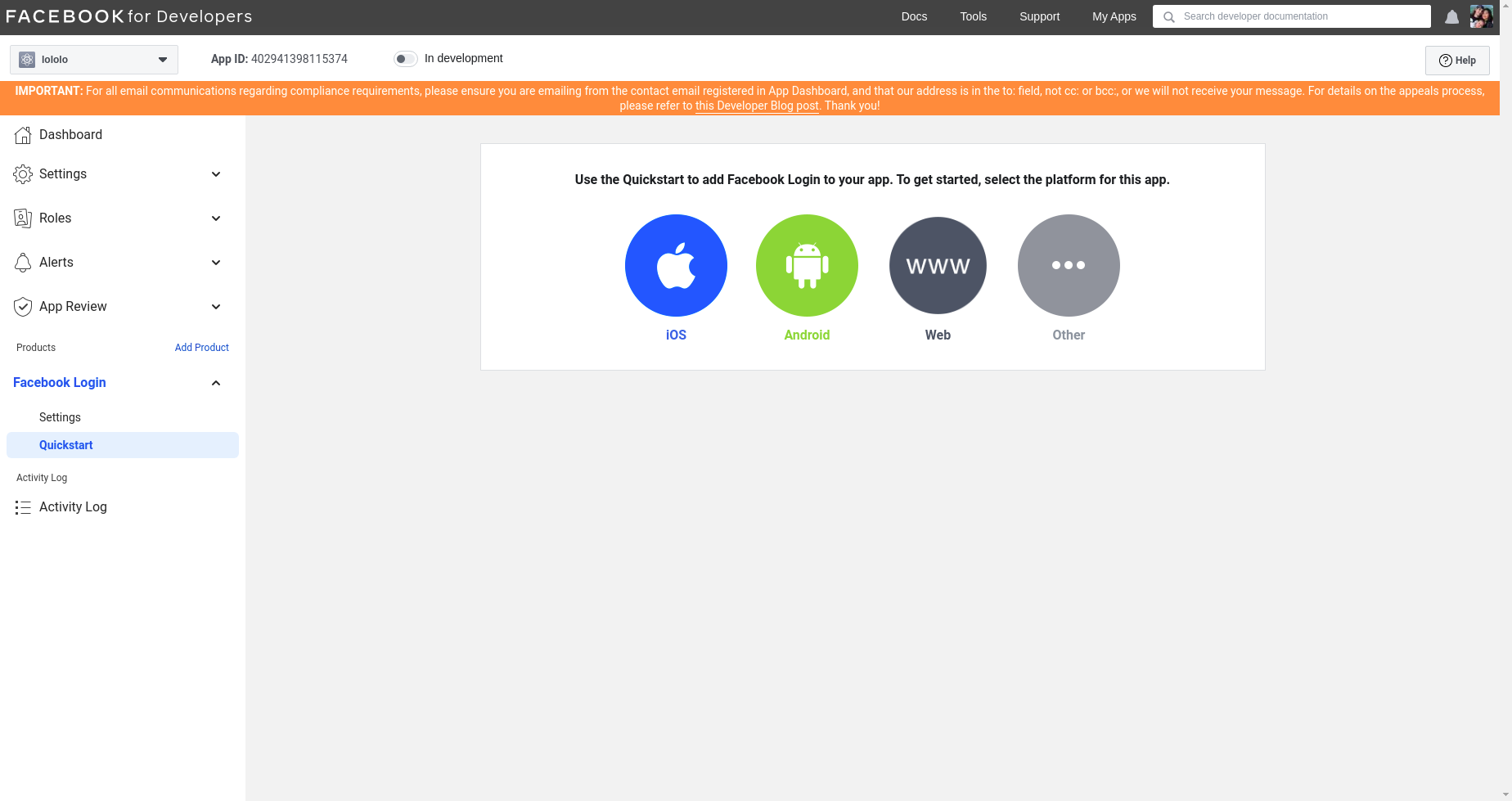
    1. Click on www since we will be building a website

    Alt text

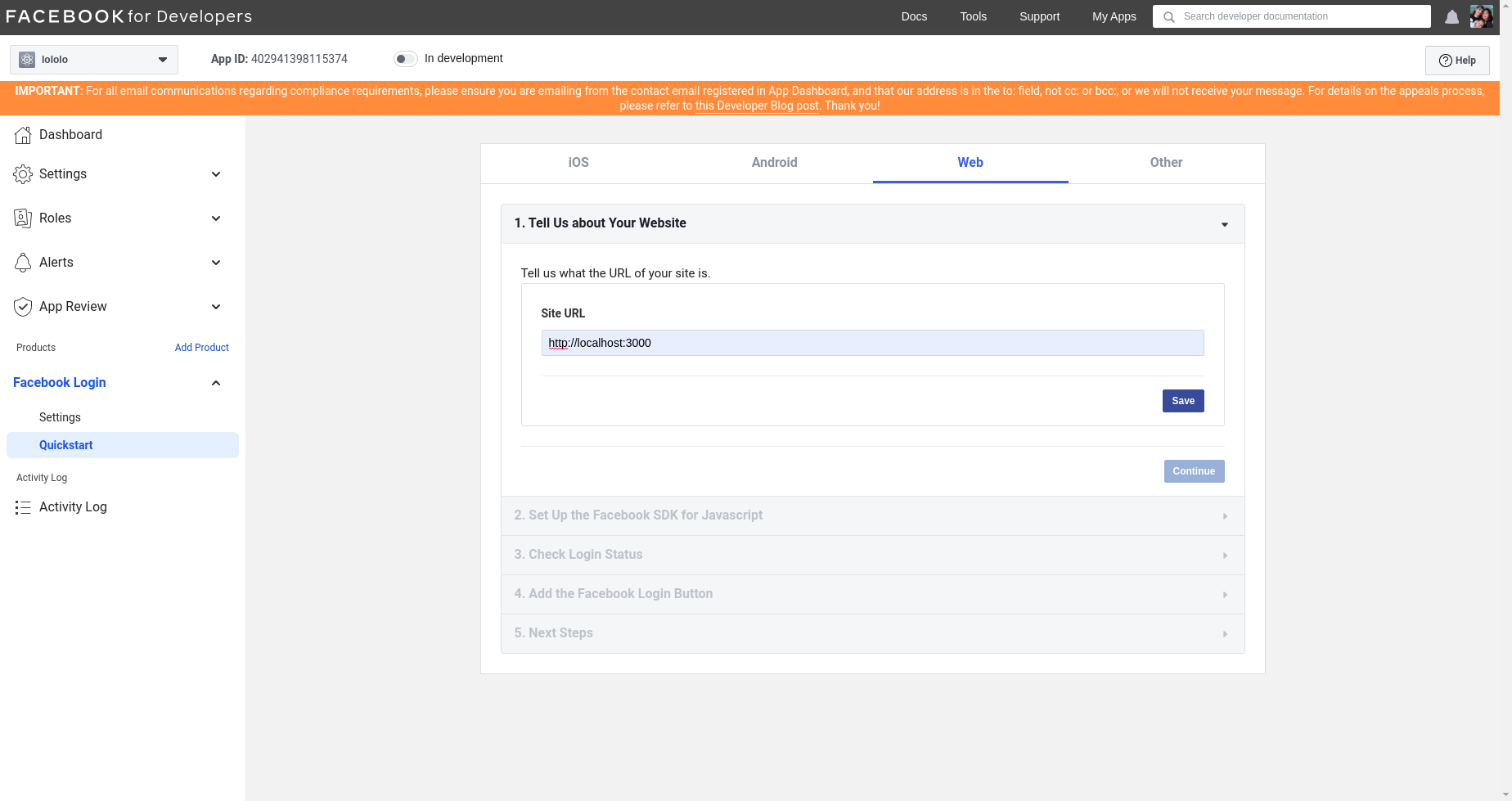
    1. Since we will be testing in it locally, we will enter the website : http://localhost:3000/

    Alt text

    1. We then arrive on a page where we can find the ClientId (App ID) and the ClientSecret (App Secret) to enter in our config.js file

    Alt text

    How to create clientID and clientSecret for google

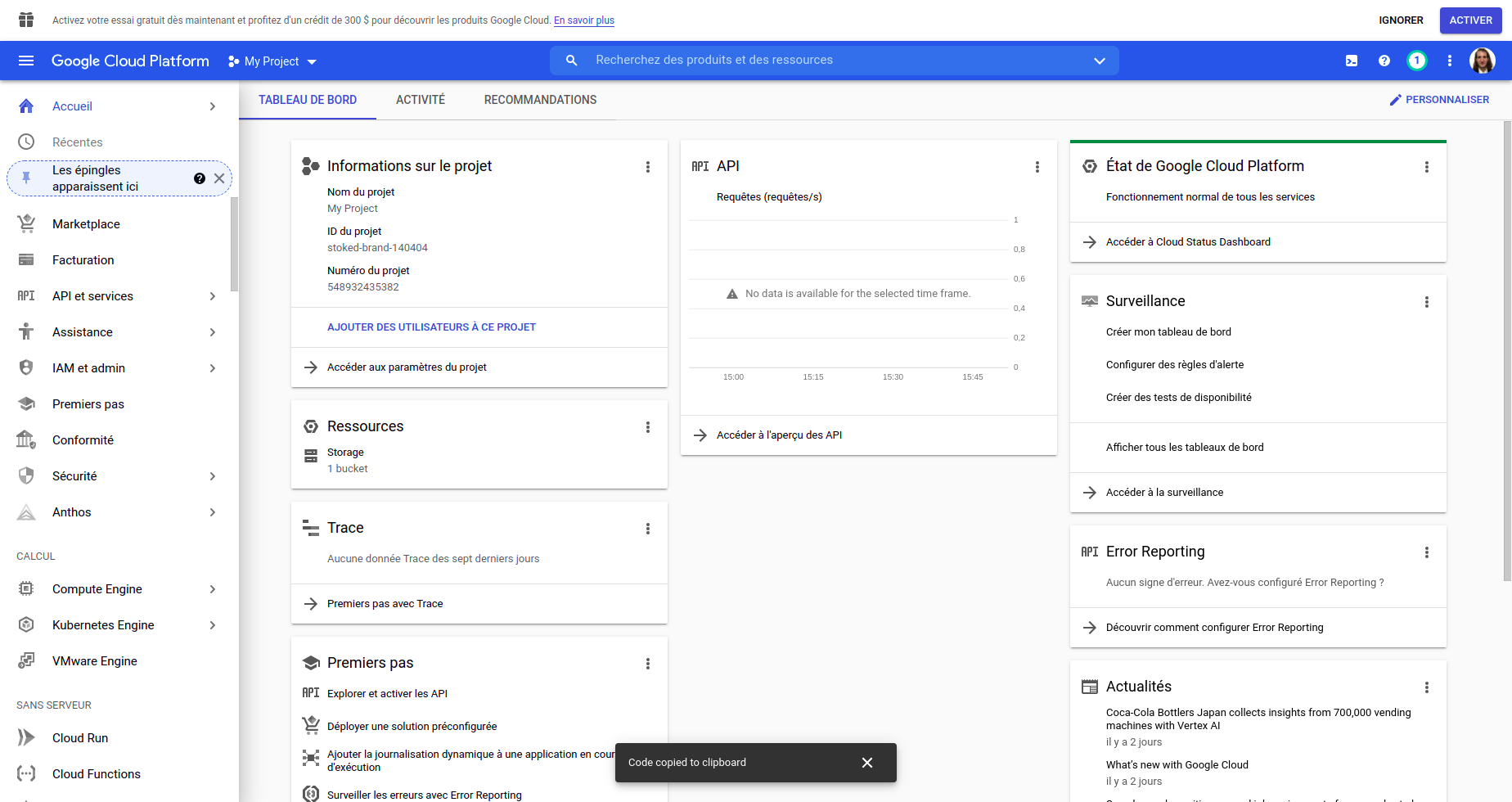
    1. First, connect to the google console : https://console.cloud.google.com/

    Alt text

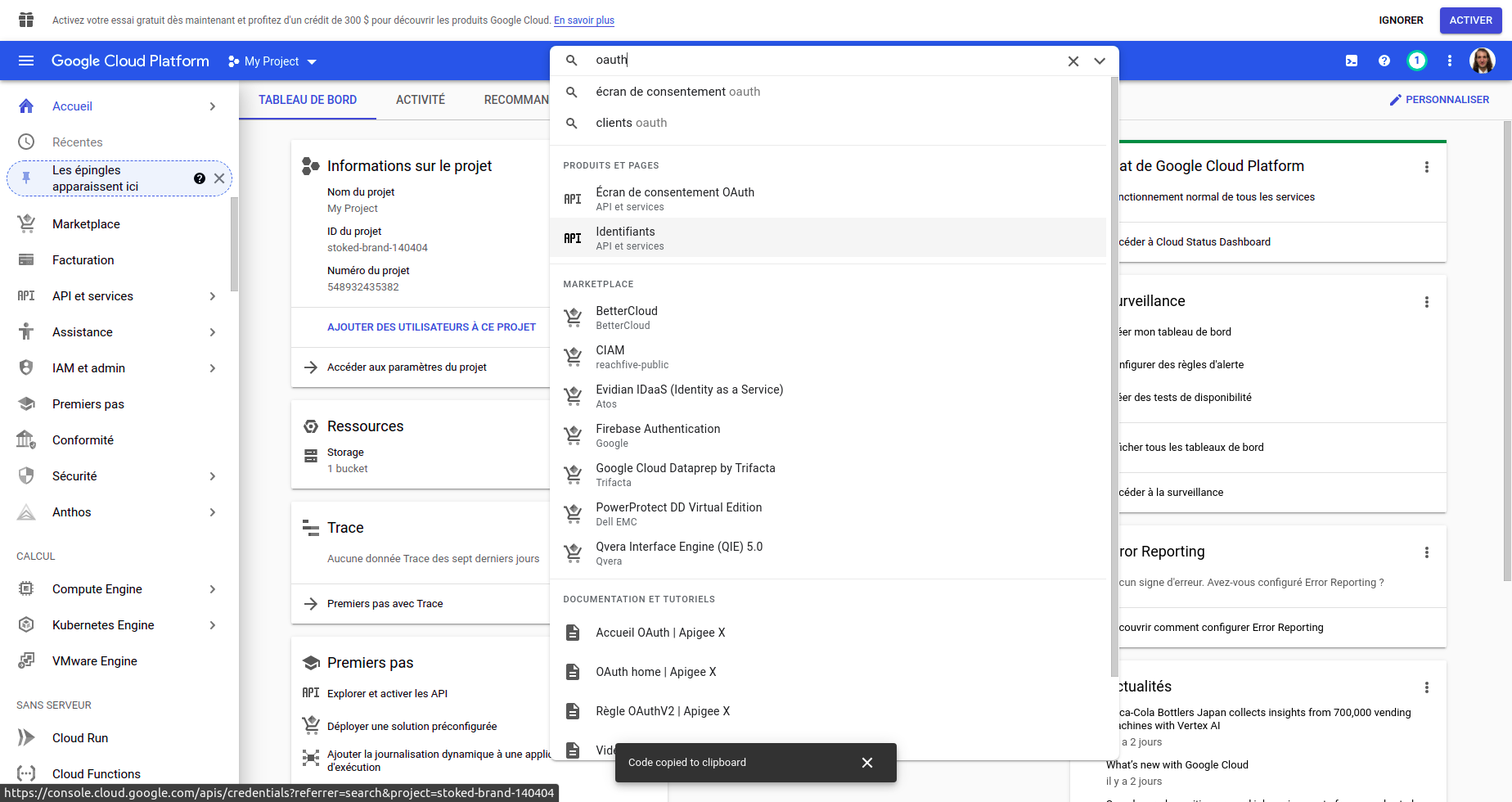
    1. Search in the bar on the top oauth and click on identifiants

    Alt text

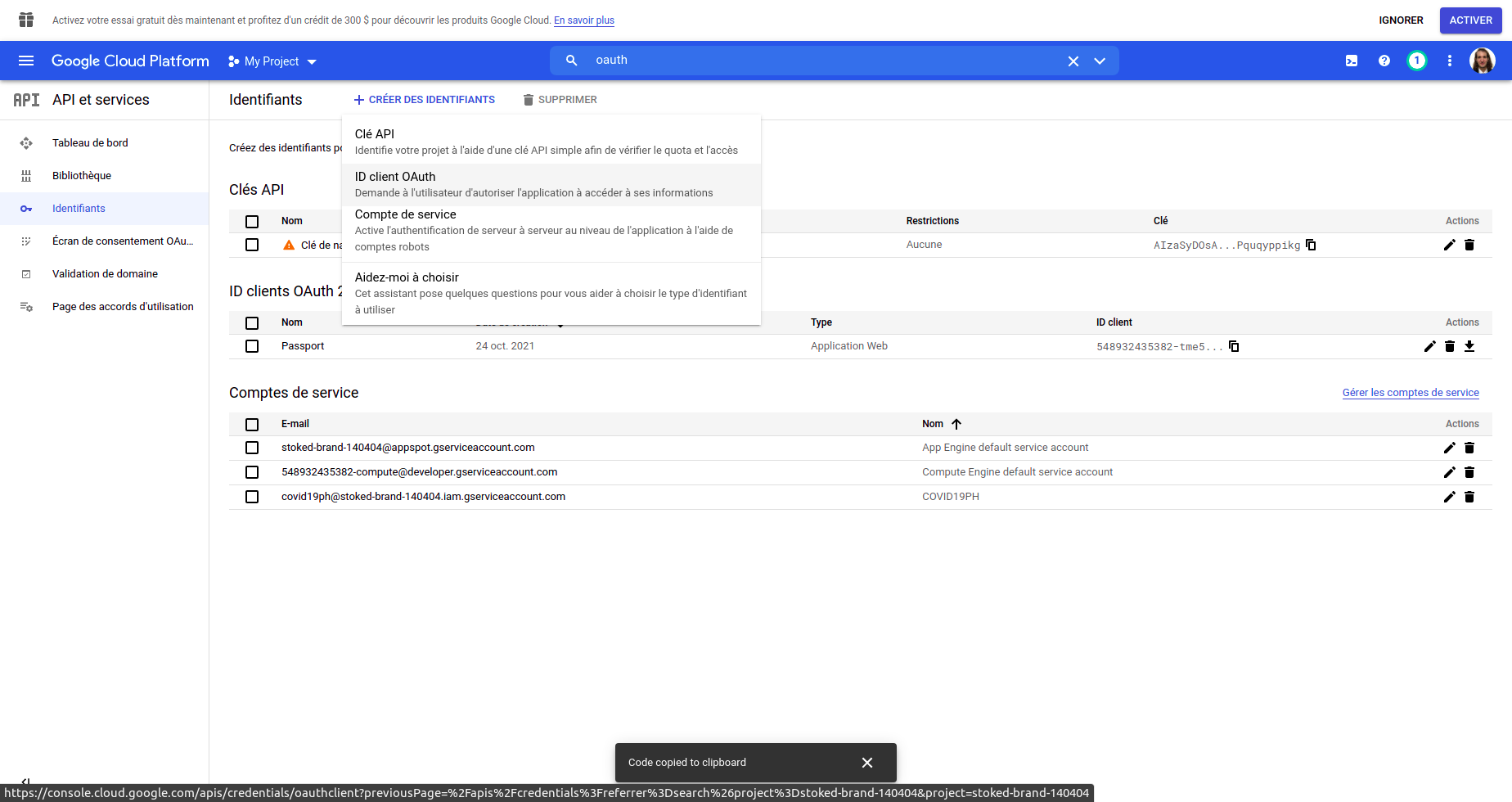
    1. Once the page loaded, click on the top create identifiants

    Alt text

    1. In the dropdown, click on ID Client OAuth

    Alt text

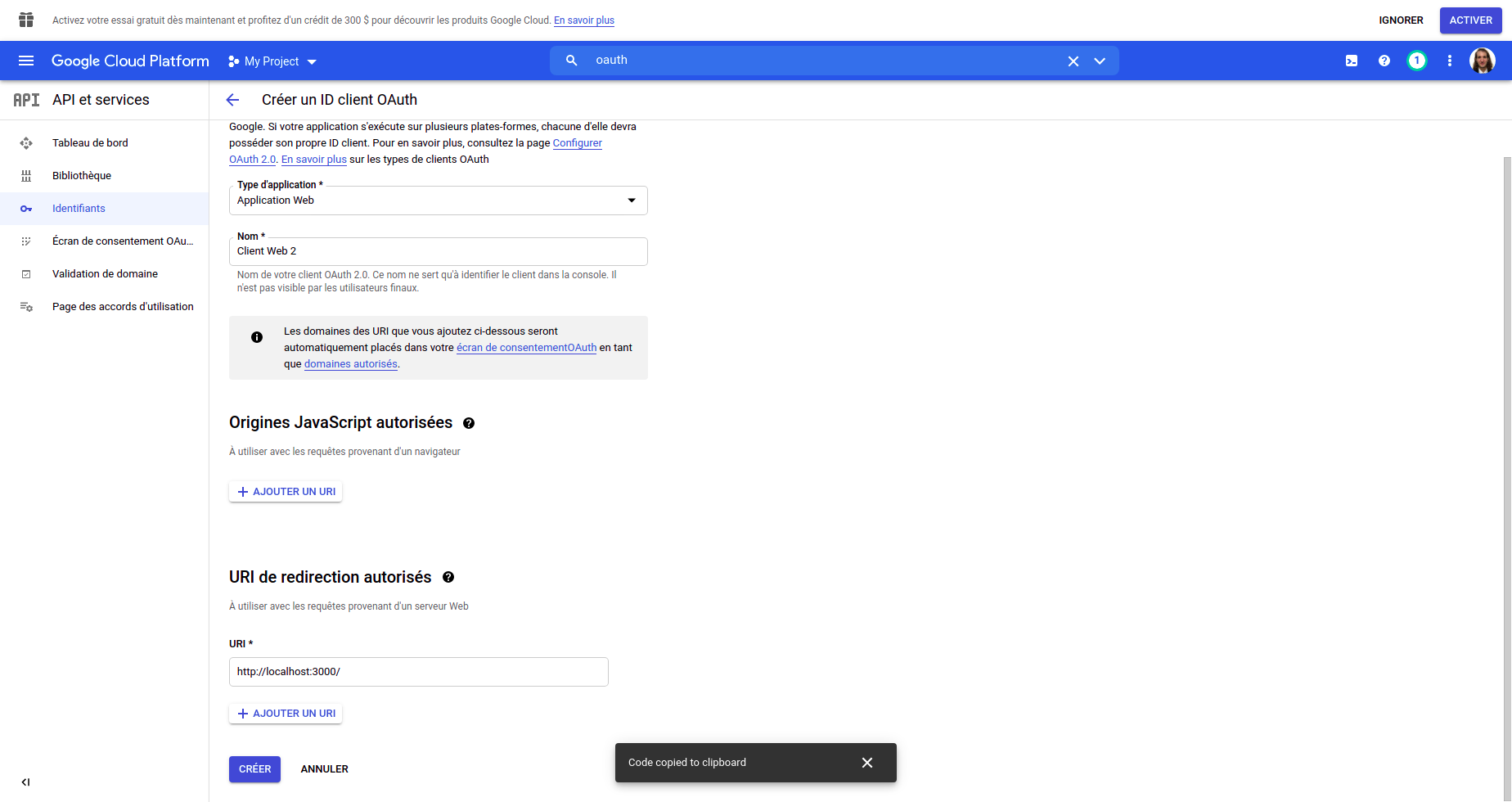
    1. Choose the type of application (web application in this case), add a name and dont forget to add the redirection URI at the bottom. Since I am working locally, it will be : http://localhost:3000

    Alt text

    1. You then will get a popup with the ClientID and ClientSecret that you can copy and paste into the config.js file.

    Alt text

    Visit original content creator repository
  • basquete

    Atividade Prática Supervisionada – Lógica de Programação

    Dados Estatísticos – Time de Basquete

    Supervisionado por: Simone de Abreu e Igor Oliveira Borges

    Descrição da Atividade

    A ideia da atividade é fazer um programa que implemente um relatório estatístico dos jogadores de um time de basquete de uma temporada. Esse relatório é importante para o técnico definir se seu time está com índices de desenvolvimento bons em relação aos demais times da temporada.

    Sabe-se que em um time de basquete são necessários 5 jogadores em quadra, podendo ter até outros 5 jogadores reservas, contabilizando 10 jogadores por time no total.

    Para cada um dos jogadores do time, seu programa deve ler o nome e a altura. Usar um vetor de Strings para armazenar os nomes e um vetor para armazenar as alturas.

    Após a entrada dos dados dos 10 jogadores, o programa deve apresentar o seguinte menu de opções:

    ======== TIME DE BASQUETE ========
    1 – Dados dos jogadores
    2 – Média de alturas
    3 – Desvio padrão das alturas
    4 – Maior e Menor altura
    5 – Mediana das alturas
    6 – Finalizar
    
    Digite uma opção:
    

    Itens do Menu

    1. Exibir o nome e a altura de cada jogador do time.
    2. Calcular e apresentar a média das alturas do time de basquete.
    3. Apenas se a média já estiver sido calculada, calcular o desvio padrão
      que é dado pela fórmula: (Σ(alturasˆ2) + total de alturas) - mediaˆ2.
    4. Encontrar o jogador mais alto e o jogador mais baixo do time. Apresentar o nome do jogador e a sua altura.
    5. Calcula a mediana das alturas. A mediana é o elemento central de uma lista ordenada. Caso o conjunto de dados seja par, então a mediana é a média dos dois valores centrais. Pesquise como “ordenar vetor em JAVA”.
      Lembre-se que o vetor de nomes também devem ser alterados, para tanto, pesquise a função de cópia de strings – clone().
    6. Finaliza a execução do programa.

    Regras e Restrições

    ara o correto desenvolvimento do programa algumas regras e restrições devem ser cumpridas:

    1. A tela de início do programa deve apresentar (System.out.println()) o nome completo e o RA de cada integrante do grupo!
    2. A altura de cada jogador, não pode ser 0 negativa. Caso seja digitado um valor inválido, o programa deverá solicitar um novo valor.
    3. Para qualquer uma das regras listadas, o programa não pode ser finalizado. O programa deve fazer as validações de entrada e somente prosseguir quando os dados de entrada forem válidos.
    4. O programa somente deve ser finalizado ao escolher o item 6 do menu.
    5. Pode utilizar o conceito de métodos – pesquisar nos livros de referência.
    6. Para armazenar os nomes dos jogadores, o grupo deve pesquisar o
      conceito de matrizes (“vetor de Strings em Java” no google).

    Entregáveis

    O trabalho deve ser desenvolvido em equipes de no mínimo 3 e no máximo 5 alunos.
    Cada equipe deve realizar a entrega do projeto compactado, no formato ZIP, pelo Blackboard.

    Critérios de Avaliação

    Cada grupo terá o seu trabalho avaliado utilizando os seguintes critérios:

    • Correta implementação e funcionamento do algoritmo.
    • Legibilidade (comentários e organização).
    • Nomeação adequada de variáveis.
    • Pontualidade na entrega no Blackboard.

    Visit original content creator repository