Blog

  • ChangeSkin

    Build Status

    High Transparency Android Change Skin Framework

    中文README:高透明度安卓换肤框架

    Table Of Content


    Features

    toTop

    * dynamically load skin apk for skin resources, no need for apk installation

    * change skin by reset views’ attributes, no need of regenerating any views, or restarting any components

    * search skinizable attributes by matching resource type and name between app & skin package, no need of using user-defined attributes

    * support skin change of android.app.Fragment & Activity

    * support skin change of android.support.v4.app.Fragment & Activity


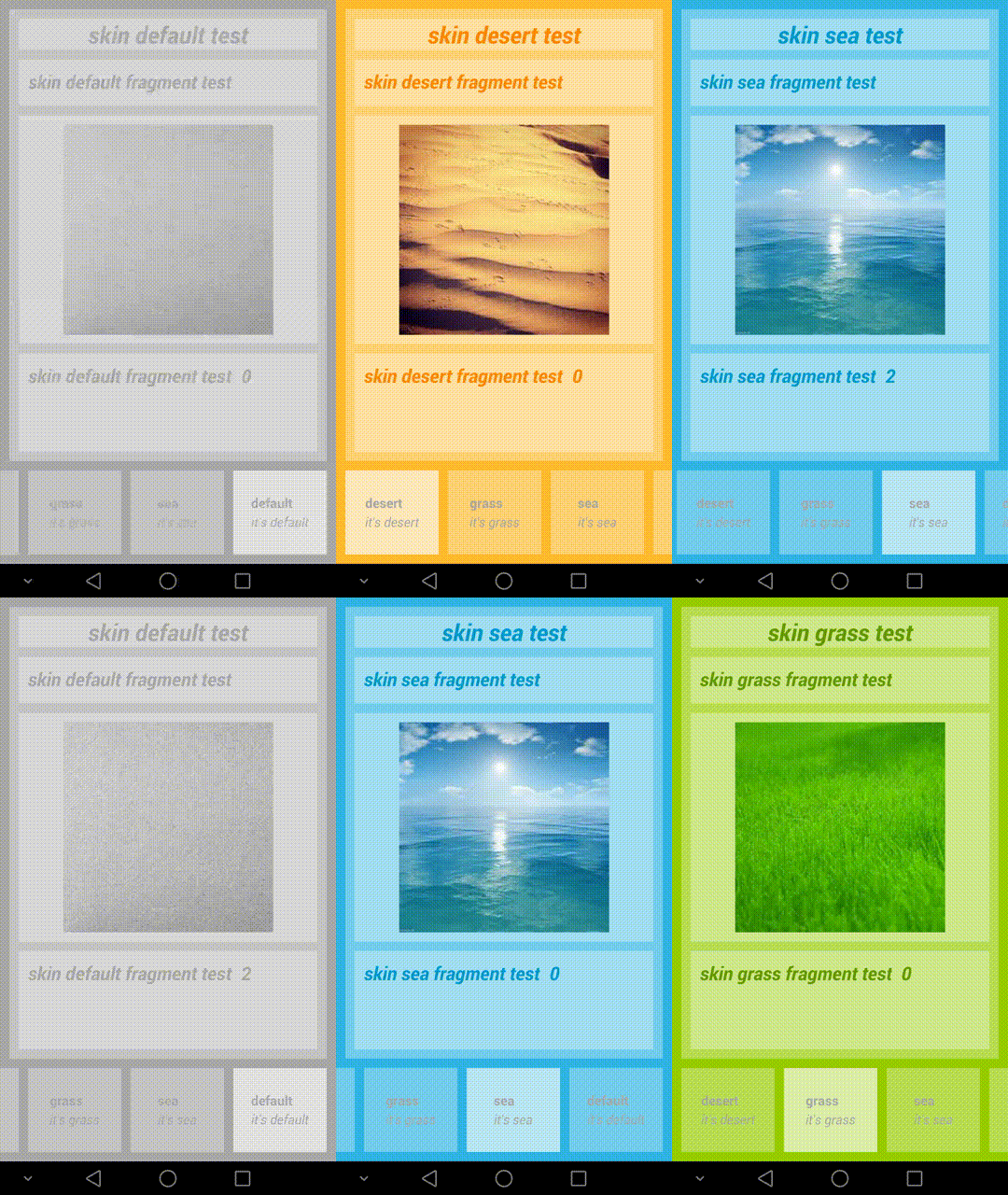
    Demo

    toTop

    image


    How to use

    toTop

    Import two projects by Android Studio, with names of Skin and SkinChange respectively. Project Skin is used to make skin apk, while project SkinChange is the demo app which integrates the framework.

    Better not change relative path of these two projects, to ensure demo runs.

    How to make skin apk

    toTop

    Skin package is made by project Skin.

    Skin apk contains ONLY resources, no codes. Make multiple skin apks of different skins by setting productFlavor.

    // Skins used for demo, are DESERT (mostly orange color), GRASS(mostly green color) and SEA(mostly blue color).
    // Plus the default skin(mostly gray color), this demo contains 4 skins in total.
    productFlavors {
            desert {
    
            }
            grass {
    
            }
            sea {
    
            }
        }

    Each skin apk contains no java codes, just resources for skin change:

    task buildSkins(dependsOn: "assembleRelease") {
    
        delete fileTree(DEST_PATH) {
            include SKIN_APK_FILE_NAME_PATTERN
        }
    
        copy {
            from(FROM_PATH) {
                include SKIN_APK_FILE_NAME_PATTERN
            }
            into DEST_PATH
        }
    
    }

    In demo, this task makes 3 skin apks for 3 flavors. They are the skin packages. Their names are in the form of “skin_[SKIN_NAME]”. In demo, the gradle task makes skin_desert.apk, skin_grass.apk & skin_sea.apk. These apks are copied & pasted to the ASSET directory of the demo app. When in need of a skin change, framework loads skin apks from ASSET directory and apply them to the demo app, i.e. changing the skin.

    How to integrate skin change framework

    toTop

    Demo app corresponds to project SkinChange. It integrates the skin change framework. Please follow these steps:

    (1) Application should extend com.lilong.skinchange.base.SkinApplication:

    <application
            android:name=".base.SkinApplication"
            android:allowBackup="true"
            android:icon="@drawable/ic_launcher"
            android:label="@string/app_name"
            android:theme="@style/AppTheme">
            ....

    (2) Activity should extend com.lilong.skinchange.base.SkinActivity

    public class DemoActivity extends SkinActivity {
    ....

    (3) Fragment should extend com.lilong.skinchange.base.SkinFragment

    public class DemoFragment extends SkinFragment {
    ...

    (4) LayoutInflater needs to be acquired from getLayoutInflater() method of SkinActivity & SkinFragment. If system callbacks provide layoutInflater by params, it’s ok to use it.

    ...
    
    // when making a FragmentPagerAdapter, the layoutInflater should be acquired by the getLayoutInflater() method in SkinActivity & SkinFragment.
    skinAdapter = new SkinTestFragmentPagerAdapter(getSupportFragmentManager(), getLayoutInflater());
    ...

    How to use skin change API

    toTop

    Use changeSkin(Context context, View rootView, HashMap<String, ArrayList> map, SkinInfo info) method of SkinManager to change skin:

    ...
    private SkinManager skinManager;
    ...
    @Override
        protected void onCreate(Bundle savedInstanceState) {
            super.onCreate(savedInstanceState);
            skinManager = SkinManager.getInstance(getApplicationContext());
            ....
             skinManager.changeSkin(getApplicationContext(), getWindow().getDecorView(), getSkinizedAttributeEntries(), info);
             ....

    The second param, rootView, is the root view of the SkinActivity or SkinFragment, which needs the skin change feature. The third param, is the data structure needed by the skin change framework. This param can be acquired by getSkinizedAttributeEntries() method of SkinActivity. The fourth param, is skin apk’s info. This param can be acquired by getCurSkinInfo() method of SkinManager, as the info of the current skin.

    Tips: this API works only for the views in the viewTree under rootView. Different activities need their own calls to this API because their rootView are different. The rootView of fragment will be added to the rootView of its host activity during fragment add process, so no need for calling this API in fragment. If an activity changes its skin, all the fragments under its management will change their skins too.

    Which are the skinizable attributes

    toTop

    Theretically, all views which have user-defined id, and have attributes that use resouce references, are able to change their skin.

    If the resouce name and type of certain attribute, are the same as a resource in the skin apk, the resource value will be changed to the one in skin apk. Then this change will be applied to the view by calling the setter of this view’s attributes, via reflection.

    This is the idea of this framework.

    For example, in project SkinChange,i.e. demo app, the root layout of DemoActivity is:

    ...
    <RelativeLayout
        android:id="@+id/container"
        xmlns:android="http://schemas.android.com/apk/res/android"
        android:layout_width="match_parent"
        android:layout_height="match_parent"
        android:background="@color/background"
        >
        ...

    Its attribute “background”, referenced a resource, whose type is “color”, and name is “background”. In aforementioned skin_grass.apk, there’s also a resource with the same type and name:

    ...
    <resources>
        <color name="background">@android:color/holo_green_light</color>
        ...

    So the attribute “background” used in demo app, will get its resource value from skin apk, making a skin change.

    Currently supported skinizable views and attributes

    toTop

    Currently, the framework supports skin change of most attributes of View, TextView and ImageView. Other views and attributes can be taken into account by adding more reflection setter calls in public static void applySkinizedAttribute(View v, String attributeName, Resources skinResources, int skinResId) method of com.lilong.skinchange.utils.SkinUtil.

    Default skin

    toTop

    If no apks whose name is in the form of “skin_[SKIN_NAME].apk”, appear in the ASSET directory of project SkinChange, demo app will use its default, mostly gray-color skin. This skin has no corresponding skin apk, because it’s just the assembly of initial resource values used by attributes.


    Insight of the framework

    toTop

    ViewFactory intercepts the inflate process of layout xml files, record skinizable attributes

    toTop

    /**
     * intercept activity content view's inflating process
     * when parsing layout xml, get each view's skinizable attributes and store them for future skin change
     */
    
    public class SkinViewFactory implements LayoutInflater.Factory {
    
        private static final String TAG = "SkinViewFactory";
    
        private SkinManager skinManager;
        /**
         * factory of system LayoutInflater, if not null, execute code of this default factory first
         * see if it returns a non-null view
         * this is for android support lib, e.g. FragmentActivity, who set its own factory in onCreate()
         */
        private LayoutInflater.Factory defaultFactory;
        private LayoutInflater skinInflater;
    
        /**
         * skinized attr map of this factory's inflater's enclosing activity
         */
        private HashMap<String, ArrayList<SkinizedAttributeEntry>> skinizedAttrMapGlobal;
    
        /**
         * a temporary skinizedAttrMap for immediate skin change when completing inflating this view
         */
        private HashMap<String, ArrayList<SkinizedAttributeEntry>> skinizedAttrMapThisView;
    
        public SkinViewFactory(LayoutInflater skinInflater, LayoutInflater.Factory defaultFactory, HashMap<String, ArrayList<SkinizedAttributeEntry>> skinizedAttrMap) {
            this.skinManager = SkinManager.getInstance(skinInflater.getContext());
            this.skinInflater = skinInflater;
            this.defaultFactory = defaultFactory;
            this.skinizedAttrMapGlobal = skinizedAttrMap;
            this.skinizedAttrMapThisView = new HashMap<String, ArrayList<SkinizedAttributeEntry>>();
        }
    
        @Override
        public View onCreateView(String name, Context context, AttributeSet attrs) {
    
            View v = null;
    
            if (defaultFactory != null) {
                v = defaultFactory.onCreateView(name, context, attrs);
            }
    
            try {
    
                if (v == null) {
    
                    String fullClassName = SkinUtil.getFullClassNameFromXmlTag(context, name, attrs);
                    Log.d(TAG, "fullClassName = " + fullClassName);
    
                    v = skinInflater.createView(fullClassName, null, attrs);
                }
    
                Log.d(TAG, v.getClass().getSimpleName() + "@" + v.hashCode());
    
                ArrayList<SkinizedAttributeEntry> list = SkinUtil.generateSkinizedAttributeEntry(context, v, attrs);
                for (SkinizedAttributeEntry entry : list) {
    
                    Log.d(TAG, entry.getViewAttrName() + " = @" + entry.getResourceTypeName() + "https://github.com/" + entry.getResourceEntryName());
    
                    // use attribute type and entry name as key, to identify a skinizable attribute
                    String key = entry.getResourceTypeName() + "https://github.com/" + entry.getResourceEntryName();
    
                    skinizedAttrMapThisView.clear();
                    if (skinizedAttrMapThisView.containsKey(key)) {
                        skinizedAttrMapThisView.get(key).add(entry);
                    } else {
                        ArrayList<SkinizedAttributeEntry> l = new ArrayList<SkinizedAttributeEntry>();
                        l.add(entry);
                        skinizedAttrMapThisView.put(key, l);
                    }
    
                    // immediate skin change of this view
                    SkinUtil.changeSkin(skinInflater.getContext(), v, skinizedAttrMapThisView, skinManager.getCurSkinInfo());
    
                    // meanwhile add these skinized attr entries to the global map for future skin change
                    if (skinizedAttrMapGlobal.containsKey(key)) {
                        skinizedAttrMapGlobal.get(key).add(entry);
                    } else {
                        ArrayList<SkinizedAttributeEntry> l = new ArrayList<SkinizedAttributeEntry>();
                        l.add(entry);
                        skinizedAttrMapGlobal.put(key, l);
                    }
                }
    
            } catch (ClassNotFoundException e) {
                Log.e(TAG, Log.getStackTraceString(e));
            }
    
            return v;
        }
    
    }

    A skinizable attribute is recorded as an SkinizedAttributeEntry. One skinizable attribute of one view can be recorded as such a SkinizedAttributeEntry. The hashmap of complete attribute name : skinizable attributes, is HashMap<String, ArrayList<SkinizedAttributeEntry>>. The complete attribute name, i.e. the key of this map, is a string in the form of “[RESOURCE_TYPE]/[RESOURCE_NAME]”. The skinizable attributes, i.e. the value of this map, are all the attributes which reference such a resource, recorded by SkinViewFactory during the inflation interception. For example, there’s a TextView:

    <TextView
            android:id="@+id/tv_title"
            android:layout_width="wrap_content"
            android:layout_height="wrap_content"
            android:text="@string/tv_title_frag"
            android:textColor="@color/tv_title_frag"
            android:textSize="20sp"
            android:textStyle="bold|italic"/>

    This view leads to two keys, “string/tv_title_frag” and “color/tv_title_frag”, their corresponding value is a one-element ArrayList. “string/tv_title_frag”‘s list contains one skinizedAttributeEntry,which contains a reference to this TextView,attribute name “text”,resource type “string” and resource name “tv_title_frag”. “color/tv_title_frag”‘s list contains one skinizedAttributeEntry,which contains a refrence to this TextView,attribute name “textColor”,resource type”color” and resource name “tv_title_frag”.

    Each SkinActivity/SkinFragmentActivity owns such a skinizedAttrMap,serving as a matching dictionary between app and skin apk.

    Parse skin apk, record all the resources it contains

    toTop

    /**
         * use DexClassLoader to get all resource entries in a specified apk
         * dynamic load this apk, no need to install it
         * in this senario, "a specified apk" refers to the skin apk
         *
         * @param hostClassLoader main application's classloader
         * @param apkPath         absolute path of this specified apk
         * @return a list of all the resource entries in the specified apk
         */
        public static ArrayList<ResourceEntry> getSkinApkResourceEntries(Context context, ClassLoader hostClassLoader, String apkPath) {
    
            ArrayList<ResourceEntry> list = new ArrayList<ResourceEntry>();
    
            try {
                // odex path of the specified apk is main application's FILES dir
                DexClassLoader dexClassLoader = new DexClassLoader(apkPath, context.getFilesDir().getAbsolutePath(), null, hostClassLoader);
                String packageName = getPackageNameOfApk(context.getPackageManager(), apkPath);
    
                // get all member classes of R.java, i.e. all resource types in this package
                Class[] memberClassArray = loadMemberClasses(dexClassLoader, packageName + ".R");
                for (Class c : memberClassArray) {
                    // get all int type declared fields, i.e. all resource entries in this resource type
                    for (Field entryField : c.getDeclaredFields()) {
                        if ("int".equals(entryField.getType().getSimpleName())) {
                            ResourceEntry e = new ResourceEntry(packageName, c.getSimpleName(), entryField.getName(), entryField.getInt(null));
                            list.add(e);
                        }
                    }
                }
            } catch (Exception e) {
                Log.e(TAG, Log.getStackTraceString(e));
            }
    
            return list;
        }

    A resource is recorded as a ResourceEntry, which contains resource type, resource name, and resource id. These information is acquired by parsing R.java of skin apk via reflection. When finish parsing the resources in a skin apk, the framework returns a list of the resources this apk contains. This is a list of ResourceEntry.

    Build Resources instance of skin apk

    toTop

    /**
         * get Resources instance of a specified apk
         * this instance can be used to retrieve resource id/name/value of this apk
         *
         * @param hostResources main application's resources instance
         * @param apkPath       absolute path of the skin apk
         * @return Resources instance of the specified apk
         */
        public static Resources getApkResources(Resources hostResources, String apkPath) {
    
            try {
                AssetManager am = AssetManager.class.newInstance();
                Method methodAddAssetPath = AssetManager.class.getDeclaredMethod("addAssetPath", String.class);
                methodAddAssetPath.setAccessible(true);
                methodAddAssetPath.invoke(am, apkPath);
                Resources apkResources = new Resources(am, hostResources.getDisplayMetrics(), hostResources.getConfiguration());
                return apkResources;
            } catch (Exception e) {
                Log.e(TAG, Log.getStackTraceString(e));
            }
    
            return null;
        }

    Compare resource entries between app and skin apk, search for skinizable resources and attributes

    toTop

    /**
         * change skin using a specified skin apk
         *
         * @param rootView        rootView of android activity/fragment who is using skin change feature
         * @param skinizedAttrMap hashmap
         *                        key is a skinized attribute identifier, formed as "resource typename/resource entryname"
         *                        value is a list, contains all views that have this kind of skinized attribute
         *                        each ownership relation is a skinizedAttributeEntry
         * @param resourceEntries contains resource entries which are used to match against app's skinized attributes
         * @param fromResources   matched resource entry will get actual resource value from this resources instance
         */
        public static void changeSkinByResourceEntries(View rootView, HashMap<String, ArrayList<SkinizedAttributeEntry>> skinizedAttrMap, ArrayList<ResourceEntry> resourceEntries, Resources fromResources) {
    
            for (ResourceEntry entry : resourceEntries) {
    
                String key = entry.getTypeName() + "https://github.com/" + entry.getEntryName();
    
                if (skinizedAttrMap.containsKey(key)) {
                    ArrayList<SkinizedAttributeEntry> l = skinizedAttrMap.get(key);
                    for (SkinizedAttributeEntry e : l) {
    
                        View v = e.getViewRef().get();
                        //TODO duplicate id within the same view tree is a problem
                        // e.g. when fragment's layout has a child view with the same id as the parent view
                        if (v == null) {
                            v = rootView.findViewById(e.getViewId());
                        }
                        if (v == null) {
                            continue;
                        }
    
                        SkinUtil.applySkinizedAttribute(v, e.getViewAttrName(), fromResources, entry.getResId());
                    }
                }
            }
        }

    Traverse the resourceEntries in skin apk, compare the resource type and name against skinizable resources, i.e. the SkinizedAttributeEntry list. If there’s a match, extract the view reference and id from SkinizedAttributeEntry, thus getting the view, then fetch the resource value from skin apk. Based on the attribute name in SkinizedAttributeEntry and the aforementioned information, call the attribute setter of this view via reflection, changing the skin.

    Change skin by search result, by calling setter via reflection

    toTop

    /**
         * reset view's attribute due to skin change
         *
         * @param v             view whose attribute is to be reset due to skin change
         * @param attributeName name of the attribute
         * @param skinResources Resources instance of the skin apk
         * @param skinResId     new attribute's value's resId within Resources instance of the skin apk
         */
        public static void applySkinizedAttribute(View v, String attributeName, Resources skinResources, int skinResId) {
    
            // android.view.View
            if ("layout_width".equals(attributeName)) {
                // only workable when layout_width attribute in xml is a precise dimen
                ViewGroup.LayoutParams lp = v.getLayoutParams();
                lp.width = (int) skinResources.getDimension(skinResId);
                v.setLayoutParams(lp);
            } else if ("layout_height".equals(attributeName)) {
                // only workable when layout_height attribute in xml is a precise dimen
                ViewGroup.LayoutParams lp = v.getLayoutParams();
                lp.height = (int) skinResources.getDimension(skinResId);
                v.setLayoutParams(lp);
            } else if ("background".equals(attributeName)) {
                Drawable backgroundDrawable = skinResources.getDrawable(skinResId);
                v.setBackgroundDrawable(backgroundDrawable);
            } else if ("alpha".equals(attributeName)) {
                float alpha = skinResources.getFraction(skinResId, 1, 1);
                v.setAlpha(alpha);
            } else if ("padding".equals(attributeName)) {
                int padding = (int) skinResources.getDimension(skinResId);
                v.setPadding(padding, padding, padding, padding);
            } else if ("paddingLeft".equals(attributeName)) {
                int paddingLeft = (int) skinResources.getDimension(skinResId);
                v.setPadding(paddingLeft, v.getPaddingTop(), v.getPaddingRight(), v.getPaddingBottom());
            } else if ("paddingTop".equals(attributeName)) {
                int paddingTop = (int) skinResources.getDimension(skinResId);
                v.setPadding(v.getPaddingLeft(), paddingTop, v.getPaddingRight(), v.getPaddingBottom());
            } else if ("paddingRight".equals(attributeName)) {
                int paddingRight = (int) skinResources.getDimension(skinResId);
                v.setPadding(v.getPaddingLeft(), v.getPaddingTop(), paddingRight, v.getPaddingBottom());
            } else if ("paddingBottom".equals(attributeName)) {
                int paddingBottom = (int) skinResources.getDimension(skinResId);
                v.setPadding(v.getPaddingLeft(), v.
                ......

    Based on view, name of the skinizable attribute, Resources instance of the skin apk, resource id, the framework calls view’s setter to change attribute, thus changing skin.

    Whole process

    toTop

    /**
         * change skin using a specified skin apk
         * this apk can be a skin apk, OR this app itself(restore to default skin)
         *
         * @param rootView        rootView of android activity/fragment who is using skin change feature
         * @param skinizedAttrMap hashmap
         *                        key is a skinized attribute identifier, formed as "resource typename/resource entryname"
         *                        value is a list, contains all views that have this kind of skinized attribute
         *                        each ownership relation is a skinizedAttributeEntry
         * @param info            skinInfo which contains the target skin's information
         */
        public static void changeSkin(Context context, View rootView, HashMap<String, ArrayList<SkinizedAttributeEntry>> skinizedAttrMap, SkinInfo info) {
    
            ArrayList<ResourceEntry> resourceEntries = null;
            Resources resources = null;
    
            // restore to default skin
            if (info.isSelf()) {
                // parse R.java file of THIS APP's apk, get all attributes and their values(references) in it
                resourceEntries = SkinUtil.getThisAppResourceEntries(context);
                // resources instance from this app
                resources = context.getResources();
            }
            // change skin according to skin apk
            else {
                // parse R.java file of skin apk, get all attributes and their values(references) in it
                resourceEntries = SkinUtil.getSkinApkResourceEntries(context, context.getClassLoader(), info.getSkinApkPath());
                // get Resources instance of skin apk
                resources = SkinUtil.getApkResources(context.getResources(), info.getSkinApkPath());
            }
    
            changeSkinByResourceEntries(rootView, skinizedAttrMap, resourceEntries, resources);
        }

    toTop

    Visit original content creator repository
  • kirby-hashed-assets

    Kirby Hashed Assets

    Enhances Kirby’s css() and js() helpers to support hashed filenames. Pass your normal paths (e.g. …main.js) – the plugin will lookup hashed assets and transform the path automatically (e.g. …main.20201226.js). That way you can even keep asset paths identical in development and production environment!

    Key Features

    • 🛷 Cache bust assets without query strings
    • 🎢 No need for web server rewrite rules!
    • ⛸ Supports manifest.json
    • 🎿 Supports manually hashed file names
    • ☃️ Create preload links with hashedUrl() helper

    Projects Using the Hashed Assets Plugin

    Requirements

    • PHP 8.0+
    • Kirby 3.7+

    Installation

    Download

    Download and copy this repository to /site/plugins/kirby-hashed-assets.

    Git Submodule

    git submodule add https://github.com/johannschopplich/kirby-hashed-assets.git site/plugins/kirby-hashed-assets

    Composer

    composer require johannschopplich/kirby-hashed-assets

    Usage

    Automatic Hashing With manifest.json

    For file hashing this plugin uses the hashup npm package.

    hashup is a tiny CLI tool with two objectives in mind for your freshly build assets:

    1. Rename or rather hash (hence the name) the assets.
    2. Generate a manifest.json for them.

    You don’t even have to install it to your devDependencies, since npx will fetch it once on the fly. Add hashup to your build pipeline by adding it your package.json scripts (recommended), for example:

    {
      "scripts": {
        "clean": "rm -rf public/assets/{css,js}",
        "build": "npm run clean && <...> && npx -y hashup"
      }
    }

    Now, pass asset paths to Kirby’s asset helpers like you normally do:

    <?= js("https://github.com/johannschopplich/assets/js/main.js') ?>
    // `<script src="https://example.com/assets/js/main.9ad649fd.js"></script>

    If a corresponding hashed file is found in the manifest.json, it will be used and rendered.

    For template-specific assets, use @template (instead of @auto):

    <?= js("https://github.com/johannschopplich/@template') ?>
    // `<script src="https://example.com/assets/js/templates/home.92c6b511.js"></script>`

    Warning

    If no template file exists, https://example.com/@template will be echoed. This will lead to HTTP errors and blocked content since the requested file doesn’t exist and the error page’s HTML will be returned.

    If you are unsure if a template file exists, use the following helpers:

    • cssTpl()
    • jsTpl()

    They will echo a link tag, respectively script tag, only if a template file for current page’s template is present.

    Manual Hashing

    For smaller websites you may prefer no build chain at all, but still want to utilize some form of asset hashing. In this use-case you can rename your files manually.

    Take an imaginary main.js for example. Just include it like you normally would in one of your snippets:

    <?= js("https://github.com/johannschopplich/assets/js/main.js') ?>

    Now rename the file in the format of main.{hash}.js. You may use the current date, e.g.: main.20201226.js, which will output:

    <script src="https://github.com/johannschopplich/https://example.com/assets/js/main.20201226.js"https://github.com/johannschopplich/></script>

    Voilà, without changing the asset path the hashed file will be found and rendered in your template!

    Hashed Filenames for Preloading Links

    You can use the global hashedUrl() helper to lookup a file like you normally would with the css() or js() helpers. While the latter return a link or respectively script tag, the hashedUrl() helper will only return a URL which you can use in any context.

    <link rel="preload" href="https://github.com/johannschopplich/<?= hashedUrl("https://github.com/johannschopplich/assets/css/templates/default.css') ?>" as="style">
    // <link rel="preload" href="https://github.com/assets/css/templates/default.1732900e.css" as="style">

    Since all evergreen browsers finally support JavaScript modules natively, you may prefer preloading modules:

    <link rel="modulepreload" href="https://github.com/johannschopplich/<?= hashedUrl("https://github.com/johannschopplich/assets/js/templates/home.js') ?>">
    // <link rel="preload" href="https://github.com/assets/js/templates/home.92c6b511.js">

    License

    MIT License © 2021-PRESENT Johann Schopplich

    Visit original content creator repository

  • webform_selenium_behave_python

    Selenium Behave WebForm Test

    This project implements automation tests for the Selenium Web Form page using Behave (a BDD testing framework for Python), Selenium WebDriver and Allure Reports to create detailed performance reports.

    📝 Objective

    The goal of this project is to demonstrate how to use Behave and Selenium WebDriver to create and execute automated tests based on scenarios described in the Gherkin language.

    🚀 Technologies Used

    • Python – Programming language
    • Behave – Framework for Behavior-Driven Development (BDD)
    • Selenium WebDriver – Browser automation
    • Gherkin – Language for describing test scenarios

    📂 Project Structure

    The main code resides in the Behave step definition file, which connects the scenarios described in Gherkin files to Python code.

    📝 Step File Organization

    Here’s the information organized in a table format:

    Feature File Description of Scenarios Step File Step Definitions Purpose
    webform_actions_part_1.feature Scenarios for text, password, and textarea inputs. webform_actions_part_1.py Contains step definitions for handling input scenarios.
    webform_actions_part_2.feature Scenarios for dropdown boxes. webform_actions_part_2.py Contains step definitions for handling dropdown scenarios.
    webform_actions_part_3.feature Scenarios for file input, checkbox and radio buttons. webform_actions_part_3.py Contains step definitions for handling file input and buttons scenarios.
    webform_actions_part_4.feature Scenarios for color, date picker and range bar. webform_actions_part_4.py Contains step definitions for handling color, date picker and range bar scenarios.

    It includes three main steps:

    1. Given: Opens the web form page.
    2. When: Enters text into the input field.
    3. Then: Clicks the submit button.

    @given(u'the browser open Webform page')
    @when(u'insert a information in the text input field')
    @then(u'the submit button will be clicked')

    Example Gherkin Scenario

    An example of how a scenario can be described in Gherkin in the features/form_test.feature file:

    Feature: Test the Selenium Web Form
    
      Scenario: Fill and submit the form
        Given the browser open Webform page
        When insert a information in the text input field
        Then the submit button will be clicked

    Files project structure

    webform_selenium_behave_python/
    ├── allure-reports/             # Directory for Allure reports
    ├── features/                   # Tests and automation logic
    │   ├── pages/                  # Page Objects (Page Object Pattern)
    │   ├── steps/                  # Step definitions (separated by part)
    │   ├── *.feature               # Gherkin test scenarios
    ├── behave.ini                  # Behave configuration
    ├── requirements.txt            # Project dependencies
    ├── README.md                   # Project documentation
    

    ⚙️ Installation and Setup

    Follow these steps to set up and run the project:

    1. Clone this repository:

    git clone https://github.com/your-username/selenium-behave-webform.git
    cd selenium-behave-webform
    1. Create a virtual environment:

    python -m venv venv
    source venv/bin/activate  # Linux/Mac
    venv\Scripts\activate     # Windows
    1. Install the dependencies:
    pip install -r requirements.txt

    Make sure the requirements.txt file includes the following dependencies:

    behave
    selenium
    
    1. Install the WebDriver for your browser (e.g., ChromeDriver for Google Chrome). Ensure the driver is added to your system PATH.

    ▶️ Running the Tests

    To run the tests, use the following command:

    behave

    This will execute all scenarios described in the .feature files within the features directory.

    🗒️ Generating Allure Reports

    1. Install AlLure:
      Allure can be installed in various ways. Choose the method that best fits your environment:

    Option 1: Use the Allure Commandline

    Via Homebrew (macOS/Linux):

    brew install allure

    Via Chocolatey (Windows):
    First, install Chocolatey. Then:

    choco install allure

    Via Binary (manual):
    Download the zip file from Allure Releases.
    Extract the contents and add the binary directory to your PATH.

    1. Install Allure plugin for Python:
      Install the allure-behave package, which integrates Allure with Behave.
    pip install allure-behave
    1. Set up project for Allure
      Make sure Behave test results are generated in a format compatible with Allure:
    • Run Behave with the Allure Plugin: When running your Behave tests, include the -f allure_behave.formatter:AllureFormatter option to use the Allure format and -o allure-results to specify the output directory for the results.

    Example:

    behave -f allure_behave.formatter:AllureFormatter -o allure-results

    -f: Specifies the report format.

    -o: Specifies the output directory.

    • Final Structure: After running the tests, Allure results will be saved in a directory called allure-results.
    1. Generate HTML Report
      Once the results are generated, use the Allure Commandline to create the report:
    • Run the command to generate and view the report:
    allure serve allure-results

    This will open the report in your default browser. The report is served from a temporary local server.

    • To create a static report:
    allure generate allure-results -o allure-report
    • allure-results: Directory containing the raw test results.

    • allure-report: Directory where the HTML report will be saved.

    • To view the static report:

    allure open allure-report

    📚 Resources and References

    • Selenium Documentation
    • Behave Documentation
    • Guide to Writing Gherkin Scenarios

    🤝 Contributing

    Contributions are welcome! Follow these steps to contribute:

    1. Fork this repository.
    2. Create a branch for your changes (git checkout -b feature/new-feature).
    3. Commit your changes (git commit -m ‘Add new feature’).
    4. Push to your branch (git push origin feature/new-feature).
    5. Open a Pull Request.

    Made with ❤️ by Alisson (https://github.com/alisson-t-bucchi)
    Let me know if you need any additional modifications! 🚀

    Visit original content creator repository

  • opencl_by_example

    Welcome to OpenCL by Examples using C++.

    Why OpenCL?

    I actually started learning CUDA for GPGPU first, but since I do
    my work with a MacBook Air (late 2012 model); I quickly realized
    I couldn’t run CUDA code. My machine has an Intel HD Graphics 4000, I know, it sucks,
    but still usuable! My search on how to best make use of it led me to OpenCL.

    My interests with OpenCL is primarly motivated by my interests in Deep Learning.
    I want a better understanding of how these frameworks are making use
    of GPGPU to blaze through model training.

    Here we are now, a repo of OpenCL examples. I’ll be adding more
    examples here as I pickup more of OpenCL. I am thinking each example will
    get a bit more complex.

    Setup I am using

    1. Mac OSX
    2. OpenCL 1.2
    3. C++ 11
    4. cmake 3.7

    How to Build and Run

    1. Clone this repo and cd in this repo.
    2. Run mkdir build && cd build
    3. Run cmake .. && make

    If everything has been correctly installed, you should be able to build
    the examples with no problems. Check out the CMakeLists.txt file for info
    on how the examples are being built.

    Note, I already added the C++ header for OpenCL 1.x in the libs directory.
    However, if you are for example working with OpenCL 2 you can create your own
    header file. Head over to the KhronosGroup OpenCL-CLHPP repo
    and do the following.

    1. Run git clone https://github.com/KhronosGroup/OpenCL-CLHPP
    2. Run cd OpenCL-CLHPP
    3. Run python gen_cl_hpp.py -i input_cl2.hpp -o cl2.hpp
    4. Move the generated header file cl2.hpp into the libs directory.
    5. Profit!

    Quick Introduction and OpenCL Terminology

    You’re here so I don’t need to convince you that parallel computing is awesome
    and the future. I don’t expect you to become an expert after you’ve gone through this repo,
    but I do hope you at least get an overview of how to think in OpenCL.

    OpenCL™ (Open Computing Language) is the open,
    royalty-free standard for cross-platform,
    parallel programming of diverse processors
    found in personal computers, servers,
    mobile devices and embedded platforms. – khronos site

    The following are terms to know:

    • Platform: Vendor specific OpenCL implementation.
    • Host: The client code that is running on the CPU. Basically your application.
    • Device: The physical devices you have that support OpenCL (CPU/GPU/FPGA etc..)
    • Context: Devices you select to work together.
    • Kernel: The function that is run on the device and does the work.
    • Work Item: A unit of work that executes a kernel.
    • Work Group: A collection of work items.
    • Command Queue: The only way to tell a device what to do.
    • Buffer: A chunk of memory on the device.
    • Memory: Can be global/local/private/constant (more on this later.)
    • Compute Unit: Think of a GPU core.

    OpenCL Memory Model

    alt text

    Visit original content creator repository

  • yubikey-resident

    YubiKey Resident SSH Key Generator

    This repository provides a Docker-based tool for generating resident SSH keys using a YubiKey. Resident keys allow secure SSH authentication without needing to store the private key on disk.

    What is a Resident SSH Key?

    A resident SSH key is a key pair stored directly on a FIDO2-compatible YubiKey. Unlike traditional SSH keys, the private key never leaves the YubiKey, and only a reference to the key is needed on the host machine. This makes it more secure and convenient, especially when switching devices, as you can restore the key reference at any time.

    Features

    • Generates resident SSH keys that are stored directly on the YubiKey.
    • Automatic key regeneration (restore keys anytime using ssh-keygen -K).
    • Uses Docker to provide an isolated and repeatable environment.
    • Supports optional UID tagging for managing multiple resident keys.

    Prerequisites

    • A YubiKey 5 Series or compatible FIDO2 security key.
    • Docker and Docker Compose installed on your system.
    • OpenSSH 8.2+ (for FIDO2 SSH key support).

    Setup

    Clone this repository and navigate into the project directory:

    git clone https://github.com/your-username/yubikey-resident.git
    cd yubikey-resident

    Usage

    To generate a new resident SSH key, run:

    docker compose run --rm keygen

    This will:

    1. Prompt for an optional key comment.
    2. Display existing resident keys stored on the YubiKey.
    3. Prompt for an optional UID (to manage multiple keys).
    4. Generate a new SSH key stored directly on your YubiKey.
    5. Optionally drop you into a bash shell for further management.

    How Reference Files Are Stored

    When generating a new resident SSH key, the reference files are automatically saved into the ssh_keys/ folder (mapped to /root/.ssh in the container). These files include:

    • id_ed25519_sk – A reference file pointing to the private key stored on the YubiKey. If a UID was provided, the filename will be formatted as id_ed25519_sk_<UID>.
    • id_ed25519_sk.pub – The public key file used for SSH authentication.

    Since the actual private key never leaves the YubiKey, these reference files are simply used to interact with the key stored on the device. If deleted, they can always be regenerated using:

    ssh-keygen -K

    Restoring SSH Keys

    If you lose the reference files (id_ed25519_sk and id_ed25519_sk.pub), you can restore them using:

    ssh-keygen -K

    This will retrieve all resident keys from your YubiKey.

    Listing Stored Keys

    To check what resident keys are stored on your YubiKey, run:

    ykman fido credentials list

    This will show all stored keys, including any UIDs you assigned during key generation.

    Using SSH with Your YubiKey

    Once the key is generated and restored, you can use it for SSH authentication:

    ssh -i ~/.ssh/id_ed25519_sk user@server.com

    If a UID was used, the correct filename should be specified, e.g.:

    ssh -i ~/.ssh/id_ed25519_sk_<UID> user@server.com

    Security Considerations

    Private keys never leave the YubiKey (unlike standard SSH keys).
    No need to store sensitive key files.
    Even if your local reference file is deleted, you can restore it anytime.

    You must have access to the same YubiKey and remember your PIN to recover your resident key.

    Repository Structure

    ├── Dockerfile         # Sets up the container with OpenSSH and YubiKey Manager
    ├── docker-compose.yml # Defines the Docker service for key generation
    ├── keygen.sh          # The main script to generate resident keys
    └── README.md          # This documentation
    

    Contributing

    Feel free to open an issue or submit a pull request if you’d like to improve this project!

    License

    MIT License

    Visit original content creator repository

  • android-joke-telling-app

    Gradle for Android and Java Final Project

    ic_launcher

    In this project, you will create an app with multiple flavors that uses multiple libraries and Google Cloud Endpoints. The finished app will consist of four modules. A Java library that provides jokes, a Google Cloud Endpoints (GCE) project that serves those jokes, an Android Library containing an activity for displaying jokes, and an Android app that fetches jokes from the GCE module and passes them to the Android Library for display.

    Why this Project

    As Android projects grow in complexity, it becomes necessary to customize the behavior of the Gradle build tool, allowing automation of repetitive tasks. Particularly, factoring functionality into libraries and creating product flavors allow for much bigger projects with minimal added complexity.

    What Will I Learn?

    You will learn the role of Gradle in building Android Apps and how to use Gradle to manage apps of increasing complexity. You’ll learn to:

    • Add free and paid flavors to an app, and set up your build to share code between them
    • Factor reusable functionality into a Java library
    • Factor reusable Android functionality into an Android library
    • Configure a multi project build to compile your libraries and app
    • Use the Gradle App Engine plugin to deploy a backend
    • Configure an integration test suite that runs against the local App Engine development server

    Video

    I’ve created a video demonstrating the app. Click here to view the video on YouTube.

    Screenshots

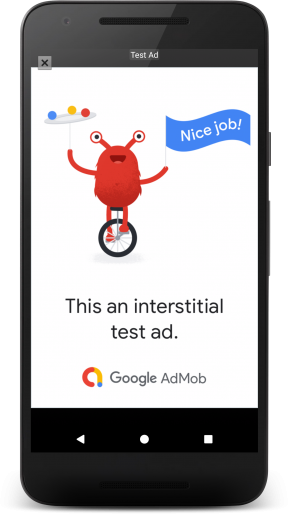
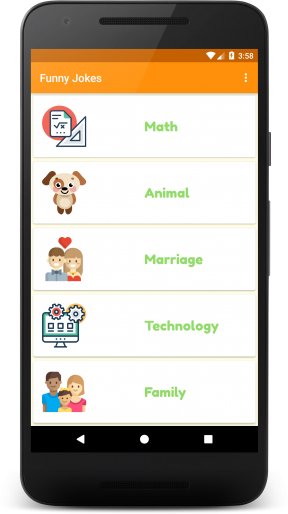
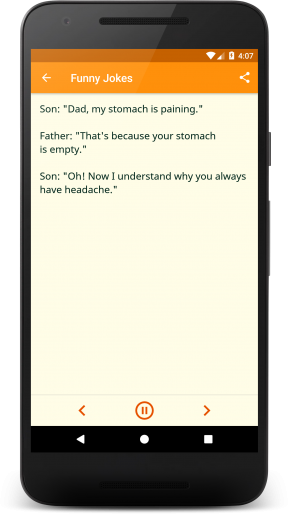
    joke_01_main joke_02_ad joke_03_marriage joke_04_main_paid joke_05_family

    Image Resources

    Math made by Prosymbols from www.flaticon.com is licensed by CC 3.0 BY. Dog made by Freepik from www.flaticon.com is licensed by CC 3.0 BY. Couple made by Freepik from www.flaticon.com is licensed by CC 3.0 BY. Development made by Prosymbols from www.flaticon.com is licensed by CC 3.0 BY. Family made by Freepik from www.flaticon.com is licensed by CC 3.0 BY. Wink made by Smashicons from www.flaticon.com is licensed by CC 3.0 BY.

    Library

    How Do I Complete this Project?

    Step 0: Starting Point

    This is the starting point for the final project, which is provided to you in the course repository. It contains an activity with a banner ad and a button that purports to tell a joke, but actually just complains. The banner ad was set up following the instructions here:

    https://developers.google.com/mobile-ads-sdk/docs/admob/android/quick-start

    You may need to download the Google Repository from the Extras section of the Android SDK Manager.

    You will also notice a folder called backend in the starter code. It will be used in step 3 below, and you do not need to worry about it for now.

    When you can build an deploy this starter code to an emulator, you’re ready to move on.

    Step 1: Create a Java library

    Your first task is to create a Java library that provides jokes. Create a new Gradle Java project either using the Android Studio wizard, or by hand. Then introduce a project dependency between your app and the new Java Library. If you need review, check out demo 4.01 from the course code.

    Make the button display a toast showing a joke retrieved from your Java joke telling library.

    Step 2: Create an Android Library

    Create an Android Library containing an Activity that will display a joke passed to it as an intent extra. Wire up project dependencies so that the button can now pass the joke from the Java Library to the Android Library.

    For review on how to create an Android library, check out demo 4.03. For a refresher on intent extras, check out;

    http://developer.android.com/guide/components/intents-filters.html

    Step 3: Setup GCE

    This next task will be pretty tricky. Instead of pulling jokes directly from our Java library, we’ll set up a Google Cloud Endpoints development server, and pull our jokes from there. The starter code already includes the GCE module in the folder called backend.

    Before going ahead you will need to be able to run a local instance of the GCE server. In order to do that you will have to install the Cloud SDK:

    https://cloud.google.com/sdk/docs/

    Once installed, you will need to follow the instructions in the Setup Cloud SDK section at:

    https://cloud.google.com/endpoints/docs/frameworks/java/migrating-android

    Note: You do not need to follow the rest of steps in the migration guide, only the Setup Cloud SDK.

    Start or stop your local server by using the gradle tasks as shown in the following screenshot:

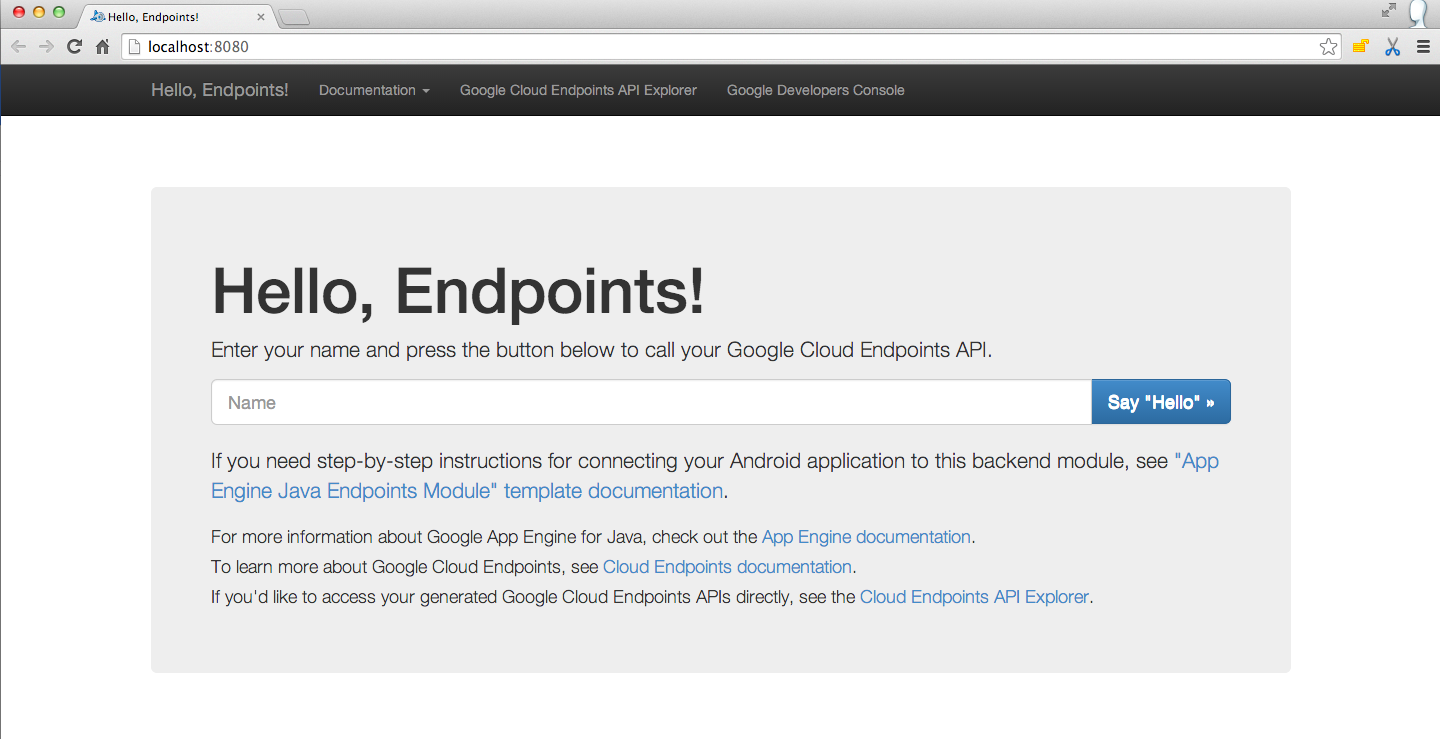
    Once your local GCE server is started you should see the following at localhost:8080

    Now you are ready to continue!

    Introduce a project dependency between your Java library and your GCE module, and modify the GCE starter code to pull jokes from your Java library. Create an AsyncTask to retrieve jokes using the template included int these instructions. Make the button kick off a task to retrieve a joke, then launch the activity from your Android Library to display it.

    Step 4: Add Functional Tests

    Add code to test that your Async task successfully retrieves a non-empty string. For a refresher on setting up Android tests, check out demo 4.09.

    Step 5: Add a Paid Flavor

    Add free and paid product flavors to your app. Remove the ad (and any dependencies you can) from the paid flavor.

    Optional Tasks

    For extra practice to make your project stand out, complete the following tasks.

    Add Interstitial Ad

    Follow these instructions to add an interstitial ad to the free version. Display the ad after the user hits the button, but before the joke is shown.

    https://developers.google.com/mobile-ads-sdk/docs/admob/android/interstitial

    Add Loading Indicator

    Add a loading indicator that is shown while the joke is being retrieved and disappears when the joke is ready. The following tutorial is a good place to start:

    http://www.tutorialspoint.com/android/android_loading_spinner.htm

    Configure Test Task

    To tie it all together, create a Gradle task that:

    1. Launches the GCE local development server
    2. Runs all tests
    3. Shuts the server down again

    Rubric

    Required Components

    • Project contains a Java library for supplying jokes
    • Project contains an Android library with an activity that displays jokes passed to it as intent extras.
    • Project contains a Google Cloud Endpoints module that supplies jokes from the Java library. Project loads jokes from GCE module via an async task.
    • Project contains connected tests to verify that the async task is indeed loading jokes.
    • Project contains paid/free flavors. The paid flavor has no ads, and no unnecessary dependencies.

    Required Behavior

    • App retrieves jokes from Google Cloud Endpoints module and displays them via an Activity from the Android Library.

    Optional Components

    Once you have a functioning project, consider adding more features to test your Gradle and Android skills. Here are a few suggestions:

    • Make the free app variant display interstitial ads between the main activity and the joke-displaying activity.
    • Have the app display a loading indicator while the joke is being fetched from the server.
    • Write a Gradle task that starts the GCE dev server, runs all the Android tests, and shuts down the dev server.

    License

    Apache, see the LICENSE file.

    Visit original content creator repository
  • github-commit-watcher

    Build Status

    Official documentation here.

    gicowa.py – GitHub Commit Watcher

    GitHub’s Watch feature doesn’t send notifications when commits are pushed.
    This script aims to implement this feature and much more.

    Call for maintainers: I don’t use this project myself anymore but IFTTT
    instead (see below). If you’re interested in taking over the maintenance of
    this project, or just helping, please let me know (e.g. by opening an issue).

    Installation

    $ sudo apt-get install sendmail
    $ sudo pip install gicowa
    

    Quick setup

    Add the following line to your /etc/crontab:

    0 * * * * root gicowa --persist --no-color --mailto myself@mydomain.com lastwatchedcommits MyGitHubUsername sincelast > /tmp/gicowa 2>&1
    

    That’s it. As long as your machine is running you’ll get e-mails when something gets pushed on a repo you’re watching.

    NOTES:

    • The e-mails are likely to be considered as spam until you mark one as
      non-spam in your e-mail client. Or use the --mailfrom option.
    • If you’re watching 15 repos or more, you probably want to use the
      --credentials option to make sure you don’t hit the GitHub API rate limit.

    Other/Advanced usage

    gicowa is a generic command-line tool with which you can make much more that
    just implementing the use case depicted in the introduction. This section
    shows what it can.

    List repos watched by a user

    $ gicowa watchlist AurelienLourot
    watchlist AurelienLourot
    brandon-rhodes/uncommitted
    AurelienLourot/crouton-emacs-conf
    brillout/FasterWeb
    AurelienLourot/github-commit-watcher
    

    List last commits on a repo

    $ gicowa lastrepocommits AurelienLourot/github-commit-watcher since 2015 07 05 09 12 00
    lastrepocommits AurelienLourot/github-commit-watcher since 2015-07-05 09:12:00
    Last commit pushed on 2015-07-05 10:48:58
    Committed on 2015-07-05 10:46:27 - Aurelien Lourot - Minor cleanup.
    Committed on 2015-07-05 09:39:01 - Aurelien Lourot - watchlist command implemented.
    Committed on 2015-07-05 09:12:00 - Aurelien Lourot - argparse added.
    

    NOTES:

    • Keep in mind that a commit’s committer timestamp isn’t the time at
      which it gets pushed.
    • The lines starting with Committed on list commits on the master
      branch only. Their timestamps are the committer timestamps.
    • The line starting with Last commit pushed on shows the time at which a
      commit got pushed on the repository for the last time on any branch.

    List last commits on repos watched by a user

    $ gicowa lastwatchedcommits AurelienLourot since 2015 07 04 00 00 00
    lastwatchedcommits AurelienLourot since 2015-07-04 00:00:00
    AurelienLourot/crouton-emacs-conf - Last commit pushed on 2015-07-04 17:10:18
    AurelienLourot/crouton-emacs-conf - Committed on 2015-07-04 17:08:48 - Aurelien Lourot - Support for Del key.
    brillout/FasterWeb - Last commit pushed on 2015-07-04 16:40:54
    brillout/FasterWeb - Committed on 2015-07-04 16:38:55 - brillout - add README
    AurelienLourot/github-commit-watcher - Last commit pushed on 2015-07-05 10:48:58
    AurelienLourot/github-commit-watcher - Committed on 2015-07-05 10:46:27 - Aurelien Lourot - Minor cleanup.
    AurelienLourot/github-commit-watcher - Committed on 2015-07-05 09:39:01 - Aurelien Lourot - watchlist command implemented.
    AurelienLourot/github-commit-watcher - Committed on 2015-07-05 09:12:00 - Aurelien Lourot - argparse added.
    AurelienLourot/github-commit-watcher - Committed on 2015-07-05 09:07:14 - AurelienLourot - Initial commit
    

    NOTE: if you’re watching 15 repos or more, you probably want to use the
    --credentials option to make sure you don’t hit the GitHub API rate limit.

    List last commits since last run

    Any listing command taking a since <timestamp> argument takes also a
    sincelast one. It will then use the time where that same command has been
    run for the last time on that machine with the option --persist. This option
    makes gicowa remember the last execution time of each command in
    ~/.gicowa.

    $ gicowa --persist lastwatchedcommits AurelienLourot sincelast
    lastwatchedcommits AurelienLourot since 2015-07-05 20:17:46
    $ gicowa --persist lastwatchedcommits AurelienLourot sincelast
    lastwatchedcommits AurelienLourot since 2015-07-05 20:25:33
    

    Send output by e-mail

    You can send the output of any command to yourself by e-mail:

    $ gicowa --no-color --mailto myself@mydomain.com lastwatchedcommits AurelienLourot since 2015 07 04 00 00 00
    lastwatchedcommits AurelienLourot since 2015-07-04 00:00:00
    AurelienLourot/crouton-emacs-conf - Last commit pushed on 2015-07-04 17:10:18
    AurelienLourot/crouton-emacs-conf - Committed on 2015-07-04 17:08:48 - Aurelien Lourot - Support for Del key.
    brillout/FasterWeb - Last commit pushed on 2015-07-04 16:40:54
    brillout/FasterWeb - Committed on 2015-07-04 16:38:55 - brillout - add README
    AurelienLourot/github-commit-watcher - Last commit pushed on 2015-07-05 10:48:58
    AurelienLourot/github-commit-watcher - Committed on 2015-07-05 10:46:27 - Aurelien Lourot - Minor cleanup.
    AurelienLourot/github-commit-watcher - Committed on 2015-07-05 09:39:01 - Aurelien Lourot - watchlist command implemented.
    AurelienLourot/github-commit-watcher - Committed on 2015-07-05 09:12:00 - Aurelien Lourot - argparse added.
    AurelienLourot/github-commit-watcher - Committed on 2015-07-05 09:07:14 - AurelienLourot - Initial commit
    Sent by e-mail to myself@mydomain.com
    

    NOTES:

    • You probably want to use --no-color because your e-mail client is
      likely not to render the bash color escape sequences properly.
    • The e-mails are likely to be considered as spam until you mark one as
      non-spam in your e-mail client. Or use the --mailfrom option.

    Changelog

    1.2.3 (2015-10-17) to 1.2.5 (2015-10-19):

    • Exception on non-ASCII characters fixed.

    1.2.2 (2015-10-12):

    • Machine name appended to e-mail content.

    1.2.1 (2015-08-20):

    • Documentation improved.

    1.2.0 (2015-08-20):

    • --version option implemented.

    1.1.0 (2015-08-20):

    • --errorto option implemented.

    1.0.1 (2015-08-18) to 1.0.9 (2015-08-19):

    • Documentation improved.

    Contributors

    Similar projects

    The following projects provide similar functionalities:

    • IFTTT, see this post.
    • Zapier, however you have to create a “Zap” for each single project you want to watch. See this thread.
    • HubNotify, however you will be notified only for new tags, not new commits.

    Visit original content creator repository

  • quick_trade

    quick_trade

    stand-with-Ukraine Downloads Downloads

    image

    Dependencies:
     ├──ta (Bukosabino   https://github.com/bukosabino/ta (by Darío López Padial))
     ├──plotly (https://github.com/plotly/plotly.py)
     ├──pandas (https://github.com/pandas-dev/pandas)
     ├──numpy (https://github.com/numpy/numpy)
     ├──tqdm (https://github.com/tqdm/tqdm)
     ├──scikit-learn (https://github.com/scikit-learn/scikit-learn)
     └──ccxt (https://github.com/ccxt/ccxt)
    

    Installation:

    Quick install:

    $ pip3 install quick-trade
    

    For development:

    $ git clone https://github.com/quick-trade/quick_trade.git
    $ pip3 install -r quick_trade/requirements.txt
    $ cd quick_trade
    $ python3 setup.py install
    $ cd ..
    

    Customize your strategy!

    from quick_trade.plots import TraderGraph, make_trader_figure
    import ccxt
    from quick_trade import strategy, TradingClient, Trader
    from quick_trade.utils import TradeSide
    
    
    class MyTrader(qtr.Trader):
        @strategy
        def strategy_sell_and_hold(self):
            ret = []
            for i in self.df['Close'].values:
                ret.append(TradeSide.SELL)
            self.returns = ret
            self.set_credit_leverages(2)  # if you want to use a leverage
            self.set_open_stop_and_take(stop)
            # or... set a stop loss with only one line of code
            return ret
    
    
    client = TradingClient(ccxt.binance())
    df = client.get_data_historical("BTC/USDT")
    trader = MyTrader("BTC/USDT", df=df)
    trader.connect_graph(TraderGraph(make_trader_figure()))
    trader.set_client(client)
    trader.strategy_sell_and_hold()
    trader.backtest()

    Find the best strategy!

    import quick_trade as qtr
    import ccxt
    from quick_trade.tuner import *
    from quick_trade import TradingClient
    
    
    class Test(qtr.ExampleStrategies):
        @strategy
        def strategy_supertrend1(self, plot: bool = False, *st_args, **st_kwargs):
            self.strategy_supertrend(plot=plot, *st_args, **st_kwargs)
            self.convert_signal()  # only long trades
            return self.returns
    
        @strategy
        def macd(self, histogram=False, **kwargs):
            if not histogram:
                self.strategy_macd(**kwargs)
            else:
                self.strategy_macd_histogram_diff(**kwargs)
            self.convert_signal()
            return self.returns
    
        @strategy
        def psar(self, **kwargs):
            self.strategy_parabolic_SAR(plot=False, **kwargs)
            self.convert_signal()
            return self.returns
    
    
    params = {
        'strategy_supertrend1':
            [
                {
                    'multiplier': Linspace(0.5, 22, 5)
                }
            ],
        'macd':
            [
                {
                    'slow': Linspace(10, 100, 3),
                    'fast': Linspace(3, 60, 3),
                    'histogram': Choise([False, True])
                }
            ],
        'psar':
            [
                {
                    'step': 0.01,
                    'max_step': 0.1
                },
                {
                    'step': 0.02,
                    'max_step': 0.2
                }
            ]
    
    }
    
    tuner = QuickTradeTuner(
        TradingClient(ccxt.binance()),
        ['BTC/USDT', 'OMG/USDT', 'XRP/USDT'],
        ['15m', '5m'],
        [1000, 700, 800, 500],
        params
    )
    
    tuner.tune(Test)
    print(tuner.sort_tunes())
    tuner.save_tunes('quick-trade-tunes.json')  # save tunes as JSON

    You can also set rules for arranging arguments for each strategy by using _RULES_ and kwargs to access the values of the arguments:

    params = {
        'strategy_3_sma':
            [
                dict(
                    plot=False,
                    slow=Choise([2, 3, 5, 8, 13, 21, 34, 55, 89, 144, 233, 377, 610, 987, 1597]),
                    fast=Choise([2, 3, 5, 8, 13, 21, 34, 55, 89, 144, 233, 377, 610, 987, 1597]),
                    mid=Choise([2, 3, 5, 8, 13, 21, 34, 55, 89, 144, 233, 377, 610, 987, 1597]),
                    _RULES_='kwargs["slow"] > kwargs["mid"] > kwargs["fast"]'
                )
            ],
    }

    User’s code example (backtest)

    from quick_trade import brokers
    from quick_trade import trading_sys as qtr
    from quick_trade.plots import *
    import ccxt
    from numpy import inf
    
    
    client = brokers.TradingClient(ccxt.binance())
    df = client.get_data_historical('BTC/USDT', '15m', 1000)
    trader = qtr.ExampleStrategies('BTC/USDT', df=df, interval='15m')
    trader.set_client(client)
    trader.connect_graph(TraderGraph(make_trader_figure(height=731, width=1440, row_heights=[10, 5, 2])))
    trader.strategy_2_sma(55, 21)
    trader.backtest(deposit=1000, commission=0.075, bet=inf)  # backtest on one pair

    Output plotly chart:

    image

    Output print

    losses: 12
    trades: 20
    profits: 8
    mean year percentage profit: 215.1878652911773%
    winrate: 40.0%
    mean deviation: 2.917382949881604%
    Sharpe ratio: 0.02203412259055281
    Sortino ratio: 0.02774402450236864
    calmar ratio: 21.321078596349782
    max drawdown: 10.092728860725552%
    

    Run strategy

    Use the strategy on real moneys. YES, IT’S FULLY AUTOMATED!

    import datetime
    from quick_trade.trading_sys import ExampleStrategies
    from quick_trade.brokers import TradingClient
    from quick_trade.plots import TraderGraph, make_figure
    import ccxt
    
    ticker = 'MATIC/USDT'
    
    start_time = datetime.datetime(2021,  # year
                                   6,  # month
                                   24,  # day
    
                                   5,  # hour
                                   16,  # minute
                                   57)  # second (Leave a few seconds to download data from the exchange)
    
    
    class MyTrade(ExampleStrategies):
        @strategy
        def strategy(self):
            self.strategy_supertrend(multiplier=2, length=1, plot=False)
            self.convert_signal()
            self.set_credit_leverages(1)
            self.sl_tp_adder(10)
            return self.returns
    
    
    keys = {'apiKey': 'your api key',
            'secret': 'your secret key'}
    client = TradingClient(ccxt.binance(config=keys))  # or any other exchange
    
    trader = MyTrade(ticker=ticker,
                     interval='1m',
                     df=client.get_data_historical(ticker, limit=10))
    fig = make_trader_figure()
    graph = TraderGraph(figure=fig)
    trader.connect_graph(graph)
    trader.set_client(client)
    
    trader.realtime_trading(
        strategy=trader.strategy,
        start_time=start_time,
        ticker=ticker,
        limit=100,
        wait_sl_tp_checking=5
    )

    image

    Additional Resources

    Old documentation (V3 doc): https://vladkochetov007.github.io/quick_trade.github.io

    License

    Creative Commons License
    quick_trade by Vladyslav Kochetov is licensed under a Creative Commons Attribution-NonCommercial-ShareAlike 4.0 International License.
    Permissions beyond the scope of this license may be available at vladyslavdrrragonkoch@gmail.com.

    Visit original content creator repository
  • CSharpAndFSharpNotes

    CSharpAndFSharpNotes

    Bunch of C#/ F#/ .Net/ Azure .Net libraries notes

    LINQPAD: https://www.linqpad.net/

    Q#: https://learn.microsoft.com/en-us/azure/quantum/overview-what-is-qsharp-and-qdk

    Repository Overview

    This repository contains a variety of C# and F# projects. Below is an overview of the different projects and solutions included in this repository:

    Solutions

    • CSharpAndFSharpConsoleApp.sln: A solution containing multiple C# and F# projects.
    • AspireApp1/AspireApp1.sln: A solution for the AspireApp1 project.

    Projects

    • CSharpClassLibrary/CSharpClassLibrary.csproj: A C# class library project.
    • FSharpClassLibrary/FSharpClassLibrary.fsproj: An F# class library project.
    • AspireApp1/AspireApp1.ApiService/AspireApp1.ApiService.csproj: A project for the AspireApp1 API service.
    • AspireApp1/AspireApp1.AppHost/AspireApp1.AppHost.csproj: A project for the AspireApp1 application host.
    • AspireApp1/AspireApp1.Web/AspireApp1.Web.csproj: A project for the AspireApp1 web application.
    • AzureFunctionAppDI/AzureFunctionAppDI.csproj: A project for an Azure Function App with dependency injection.
    • AzureSearchIndxer/AzureServices.csproj: A project for Azure Search Indexer services.
    • BitWiseOperation/BitWiseOperation.csproj: A project for bitwise operations.
    • BlazorApp2/BlazorApp2.csproj: A Blazor application project.
    • BlazorApp3/BlazorApp3.csproj: Another Blazor application project.
    • BlazorServerApp/BlazorServerApp.csproj: A Blazor Server application project.
    • ConsoleApp1/BenchmarkApp.csproj: A console application project for benchmarking.
    • ConsoleApp2/ConsoleApp2.fsproj: An F# console application project.
    • ConsoleApp3/ConsoleApp3.csproj: A C# console application project.
    • ConsoleApp4/ConsoleApp4.csproj: Another C# console application project.
    • ConsoleApp5/ConsoleApp5.csproj: Yet another C# console application project.
    • ConsoleApp6/ConsoleApp6.csproj: A C# console application project with various utilities.
    • ConsoleApp7/ConsoleApp7.csproj: A C# console application project for testing.
    • ConsoleApp8/ConsoleApp8.csproj: A C# console application project for parsing.
    • CosmosDBClient/CosmosDBClient.csproj: A project for a Cosmos DB client.
    • CSharp12/CSharp12.csproj: A project for C# 12 features.
    • CSharp13/CSharp13.csproj: A project for C# 13 features.
    • CustomSourceGenerator/CustomSourceGenerator.csproj: A project for a custom source generator.
    • DontRunMe/DontRunMe.csproj: A project that should not be run.
    • EdgeDriverTest1/EdgeDriverTest1.csproj: A project for testing with EdgeDriver.
    • EFCoreTesting/EFCoreTesting.csproj: A project for testing Entity Framework Core.
    • EmbedMono/EmbedMono.vcxproj: A project for embedding Mono.
    • FluxorBlazorApp/FluxorBlazorApp.csproj: A Blazor application project using Fluxor.
    • FSharpConsoleApp/FSharpConsoleApp.fsproj: An F# console application project.
    • FunctionalApp/FunctionalApp.csproj: A project for functional programming examples.
    • FunctionApp1/FunctionApp1.csproj: An Azure Function App project.
    • FunctionApp2/FunctionApp2.csproj: Another Azure Function App project.
    • FuzzyMath/FuzzyMath.csproj: A project for fuzzy math operations.
    • HL7/HL7.csproj: A project for HL7 messaging.
    • LearningAzureSearch/LearningAzureSearch.csproj: A project for learning Azure Search.
    • LLVMApp/LLVMApp.csproj: A project for LLVM applications.
    • MSUnitTestProject/MSUnitTestProject.csproj: A project for MSUnit tests.
    • MyTeamsApp1/MyTeamsApp1.csproj: A project for a Teams application.
    • NativeClassLibrary/NativeClassLibrary.vcxproj: A native class library project.
    • Parsers/Parsers.csproj: A project for parsers.
    • PythonInterop/PythonInterop.csproj: A project for Python interoperability.
    • QSharpConsoleApp/QSharpConsoleApp.csproj: A Q# console application project.
    • QSharpLibrary/QSharpLibrary.csproj: A Q# library project.
    • SourceGenerator/SourceGenerator.csproj: A project for source generators.
    • TestProject1/TestProject1.csproj: A test project.
    • TestProject2/TestProject2.csproj: Another test project.
    • TestProject3/TestProject3.csproj: Yet another test project.
    • WebAPI/WebAPI.csproj: A project for a web API.
    • WebApplication2/WebApplication2.csproj: Another web application project.
    • WebApplication3/WebApplication3.csproj: Yet another web application project.
    • WinFormsApp1/WinFormsApp1.csproj: A WinForms application project.
    • XUnitTestProject/XUnitTestProject.csproj: A project for XUnit tests.

    Configuration Files

    • .gitignore: A file to exclude unnecessary files from version control.
    • .dockerignore: A file to exclude unnecessary files from Docker builds.
    • .github/dependabot.yml: A file for managing dependencies with Dependabot.
    • AspireApp1/AspireApp1.ApiService/appsettings.json: Configuration file for the AspireApp1 API service.
    • AspireApp1/AspireApp1.AppHost/appsettings.json: Configuration file for the AspireApp1 application host.

    What is C#?

    C#(发音为 “C Sharp”)是由微软开发的现代、面向对象的编程语言,运行在 .NET 框架上。它被广泛用于开发桌面应用、Web 应用、移动应用、游戏等。

    以下是一个简单的 C# 控制台应用程序示例:

    using System;
    
    class Program
    {
        static void Main()
        {
            Console.WriteLine("Hello, World!");
        }
    }
    此程序输出 “Hello, World!” 到控制台。using System; 指令导入 System 命名空间,Main 方法是程序的入口点。

    要开始使用 C#,您可以下载并安装 Visual Studio 2022,这是一个功能强大的集成开发环境(IDE),支持 C# 开发。安装完成后,您可以创建一个新的 C# 控制台应用程序项目,并将上述代码粘贴到 Program.cs 文件中,然后运行程序以查看输出。

    如果您是 C# 新手,以下资源可帮助您入门:

    通过这些资源,您可以深入了解 C# 的语法、数据类型、控制结构、面向对象编程概念等,为开发各种应用程序奠定坚实的基础。

    修正后的句子
    C#(发音为 “C Sharp”)是由微软开发的现代、面向对象的编程语言,运行在 .NET 框架上。

    中文
    C#(发音为 “C Sharp”)是由微软开发的现代、面向对象的编程语言,运行在 .NET 框架上。

    正式英文
    C#, pronounced “C Sharp,” is a modern, object-oriented programming language developed by Microsoft that runs on the .NET framework.

    西班牙文
    C#, pronunciado “C Sharp”, es un lenguaje de programación moderno y orientado a objetos desarrollado por Microsoft que se ejecuta en el marco .NET.

    文言文
    C#,读作 “C Sharp”,乃微软所开发之现代面向对象编程语言,运行于 .NET 框架上。

    Prolog

    language(csharp).
    developer(microsoft).
    paradigm(object_oriented).
    framework(dotnet).

    Coq

    Definition CSharp : Language :=
      {|
        name := "C#";
        pronunciation := "C Sharp";
        developer := "Microsoft";
        paradigm := ObjectOriented;
        framework := ".NET";
      |}.

    关于该主题的数学研究
    在计算机科学中,编程语言的设计和实现涉及形式语言和自动机理论等数学领域。C# 的类型系统、内存管理和并发模型等特性可以通过数学模型进行分析和验证,以确保语言的可靠性和安全性。例如,类型系统可以使用类型理论来证明程序的正确性,而并发模型可以通过 Petri 网等工具进行建模和分析。

    源链接

    生成时间点
    2024年12月1日,12:30:00(美国东部时间)

    内容输出

    Markdown

    C#(发音为 "C Sharp")是由微软开发的现代、面向对象的编程语言,运行在 .NET 框架上。
    
    **中文**:
    C#(发音为 "C Sharp")是由微软开发的现代、面向对象的编程语言,运行在 .NET 框架上。
    
    **正式英文**:
    C#, pronounced "C Sharp," is a modern, object-oriented programming language developed by Microsoft that runs on the .NET framework.
    
    **西班牙文**:
    C#, pronunciado "C Sharp", es un lenguaje de programación moderno y orientado a objetos desarrollado por Microsoft que se ejecuta en el marco .NET.
    
    **文言文**:
    C#,读作 "C Sharp",乃微软所开发之现代面向对象编程语言,运行于 .NET 框架上。
    
    **Prolog**```prolog
    language(csharp).
    developer(microsoft).
    paradigm(object_oriented).
    framework(dotnet).

    Coq

    Definition CSharp : Language :=
      {|
        name := "C#";
        pronunciation := "C Sharp";
        developer := "Microsoft";
        paradigm := ObjectOriented;
        framework := ".NET";
      |}.

    关于该主题的数学研究
    在计算机科学中,编程语言的设计和实现涉及形式语言和自动机理论等数学领域。C# 的类型系统、内存管理和并发模型等特性可以通过数学模型进行分析和验证,以确保语言的可靠性和安全性。例如,类型系统可以使用类型理论来证明程序的正确性,而并发模型可以通过 Petri 网等工具进行建模和分析。

    源链接

    Fiddle

    https://dotnetfiddle.net/

    F#: https://tryfsharp.fsbolero.io/

    Category-theory AND functional programming

    https://weblogs.asp.net/dixin/category-theory-via-c-sharp-1-fundamentals-category-object-and-morphism

    Premature optimization

    Premature optimization is a term that refers to the practice of attempting to improve the efficiency of a program or system too early in the development process, before understanding if or where optimization is actually needed. This approach can often lead to increased complexity, more difficult code maintenance, and can even introduce bugs, all without a guaranteed benefit to performance.

    Here’s a breakdown of why premature optimization is often discouraged and how to approach it wisely:

    1. The Risks of Premature Optimization

    • Increased Complexity: Attempting to optimize early can make the codebase more complex, often involving non-intuitive, “clever” code that’s harder to understand and maintain.
    • Reduced Flexibility: Early optimizations often “lock in” specific design choices, making it difficult to adapt the code later on if requirements change.
    • Wasted Resources: Optimizing parts of the program that don’t significantly impact overall performance can waste development time and effort. It’s common for only a small percentage of code to impact runtime, so optimizing other parts yields little benefit.
    • Bug Introduction: Optimized code can introduce subtle bugs, particularly if the code sacrifices clarity for performance.

    2. A Famous Quote on Premature Optimization

    Donald Knuth, a pioneer in computer science, is often quoted on this subject:

    “Premature optimization is the root of all evil (or at least most of it) in programming.”
    — Donald Knuth

    Knuth’s quote reflects the notion that optimizing code too early often detracts from the main goal of writing clear, correct, and maintainable code.

    3. When to Optimize: The 90/10 Rule

    A common guideline in programming is the 90/10 Rule (or 80/20 Rule), which suggests that 90% of a program’s execution time is typically spent in 10% of the code. This means it’s usually better to:

    • Write code for clarity and correctness first.
    • Identify bottlenecks using profiling tools to see where the code spends the most time.
    • Optimize only the performance-critical sections based on profiling data, rather than guessing.

    4. How to Avoid Premature Optimization

    • Focus on Readability and Maintainability: First and foremost, write code that is clean, understandable, and correct. Ensure that other developers can easily understand and work with it.
    • Use Profiling Tools: After the code is working correctly, use profiling tools to measure performance. This helps pinpoint where optimizations would actually make a difference.
    • Optimize Iteratively: If a bottleneck is found, optimize it step-by-step and re-profile to measure the impact. This ensures that optimizations are targeted and effective.
    • Leverage Efficient Algorithms and Data Structures: Certain choices, like selecting appropriate algorithms and data structures, can naturally lead to efficient code without needing premature optimizations.

    5. Examples of Premature Optimization Pitfalls

    • Loop Unrolling: Manually unrolling loops in the hopes of performance gains, even when the loop is not a bottleneck. <— not yielding?
    • Complex Caching Mechanisms: Adding caching layers or memoization in parts of the code where there’s little measurable impact on runtime.
    • Avoiding Abstraction: Writing overly specific code (e.g., using inline code instead of functions) to reduce “function call overhead” when the real bottleneck lies elsewhere.

    6. When Optimization Is Justified

    While premature optimization is discouraged, some optimizations may be justified early on if:

    • The program has known real-time requirements (e.g., video games or high-frequency trading applications).
    • The code involves processing large datasets where performance bottlenecks are easily predictable (e.g., matrix multiplication in scientific computing).
    • The team has prior knowledge from similar projects about specific bottlenecks.

    Conclusion

    In most cases, optimizing before fully understanding the code’s behavior and requirements leads to unnecessary complications. Focus on clarity, use profiling to identify real bottlenecks, and optimize incrementally to ensure that your efforts are both
    necessary and effective.

    “MyFeed” Nuget Feed For Sandwich Library

    https://pkgs.dev.azure.com/ray810815/Sandwich/_packaging/MyFeed/nuget/v3/index.json

    Visit original content creator repository

  • aws-appsync-react-workshop

    Building real-time applications with React, GraphQL & AWS AppSync

    In this workshop we’ll learn how to build cloud-enabled web applications with React, AppSync, GraphQL, & AWS Amplify.

    Topics we’ll be covering:

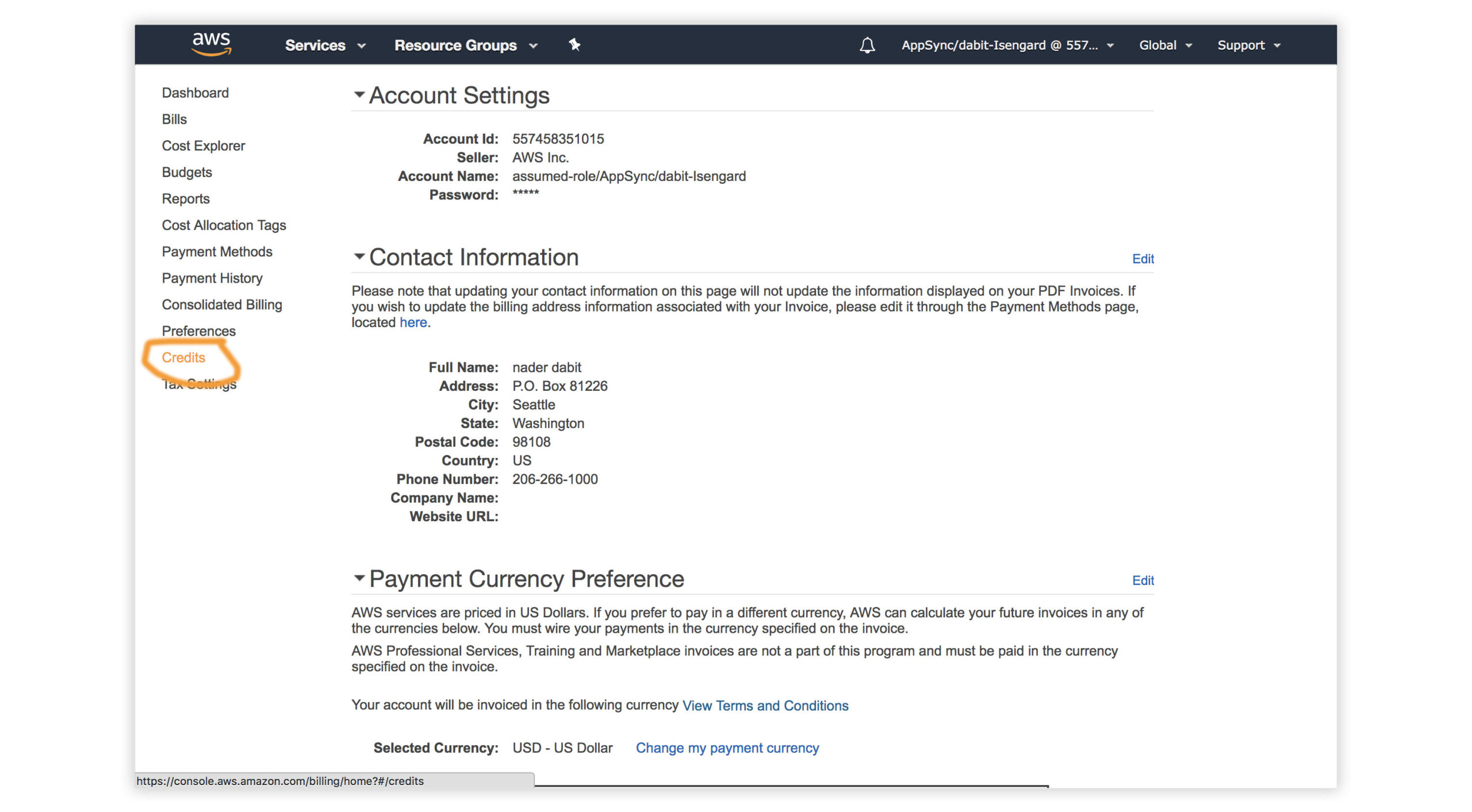
    Redeeming the AWS Credit

    1. Visit the AWS Console.
    2. In the top right corner, click on My Account.
    3. In the left menu, click Credits.

    Getting Started – Creating the React Application

    To get started, we first need to create a new React project using the Create React App CLI.

    $ npx create-react-app my-amplify-app

    Now change into the new app directory & install the AWS Amplify, AWS Amplify React, & uuid libraries:

    $ cd my-amplify-app
    $ npm install --save aws-amplify aws-amplify-react uuid
    # or
    $ yarn add aws-amplify aws-amplify-react uuid

    Installing the CLI & Initializing a new AWS Amplify Project

    Installing the CLI

    Next, we’ll install the AWS Amplify CLI:

    $ npm install -g @aws-amplify/cli

    Now we need to configure the CLI with our credentials:

    $ amplify configure

    If you’d like to see a video walkthrough of this configuration process, click here.

    Here we’ll walk through the amplify configure setup. Once you’ve signed in to the AWS console, continue:

    • Specify the AWS Region: us-east-1 || us-west-2 || eu-central-1
    • Specify the username of the new IAM user: amplify-workshop-user

    In the AWS Console, click Next: Permissions, Next: Tags, Next: Review, & Create User to create the new IAM user. Then, return to the command line & press Enter.

    • Enter the access key of the newly created user:
      ? accessKeyId: (<YOUR_ACCESS_KEY_ID>)
      ? secretAccessKey: (<YOUR_SECRET_ACCESS_KEY>)
    • Profile Name: amplify-workshop-user

    Initializing A New Project

    $ amplify init
    • Enter a name for the project: amplifyreactapp
    • Enter a name for the environment: dev
    • Choose your default editor: Visual Studio Code (or your default editor)
    • Please choose the type of app that you’re building javascript
    • What javascript framework are you using react
    • Source Directory Path: src
    • Distribution Directory Path: build
    • Build Command: npm run-script build
    • Start Command: npm run-script start
    • Do you want to use an AWS profile? Y
    • Please choose the profile you want to use: amplify-workshop-user

    Now, the AWS Amplify CLI has iniatilized a new project & you will see a new folder: amplify & a new file called aws-exports.js in the src directory. These files hold your project configuration.

    To view the status of the amplify project at any time, you can run the Amplify status command:

    $ amplify status

    Configuring the React applicaion

    Now, our resources are created & we can start using them!

    The first thing we need to do is to configure our React application to be aware of our new AWS Amplify project. We can do this by referencing the auto-generated aws-exports.js file that is now in our src folder.

    To configure the app, open src/index.js and add the following code below the last import:

    import Amplify from 'aws-amplify'
    import config from './aws-exports'
    Amplify.configure(config)

    Now, our app is ready to start using our AWS services.

    Adding a GraphQL API

    To add a GraphQL API, we can use the following command:

    $ amplify add api
    
    ? Please select from one of the above mentioned services: GraphQL
    ? Provide API name: ConferenceAPI
    ? Choose an authorization type for the API: API key
    ? Enter a description for the API key: <some description>
    ? After how many days from now the API key should expire (1-365): 365
    ? Do you want to configure advanced settings for the GraphQL API: No
    ? Do you have an annotated GraphQL schema? N 
    ? Do you want a guided schema creation? Y
    ? What best describes your project: Single object with fields
    ? Do you want to edit the schema now? (Y/n) Y

    When prompted, update the schema to the following:

    # amplify/backend/api/ConferenceAPI/schema.graphql
    
    type Talk @model {
      id: ID!
      clientId: ID
      name: String!
      description: String!
      speakerName: String!
      speakerBio: String!
    }

    Local mocking and testing

    To mock and test the API locally, you can run the mock command:

    $ amplify mock api
    
    ? Choose the code generation language target: javascript
    ? Enter the file name pattern of graphql queries, mutations and subscriptions: src/graphql/**/*.js
    ? Do you want to generate/update all possible GraphQL operations - queries, mutations and subscriptions: Y
    ? Enter maximum statement depth [increase from default if your schema is deeply nested]: 2

    This should start an AppSync Mock endpoint:

    AppSync Mock endpoint is running at http://10.219.99.136:20002

    Open the endpoint in the browser to use the GraphiQL Editor.

    From here, we can now test the API.

    Performing mutations from within the local testing environment

    Execute the following mutation to create a new talk in the API:

    mutation createTalk {
      createTalk(input: {
        name: "Full Stack React"
        description: "Using React to build Full Stack Apps with GraphQL"
        speakerName: "Jennifer"
        speakerBio: "Software Engineer"
      }) {
        id name description speakerName speakerBio
      }
    }

    Now, let’s query for the talks:

    query listTalks {
      listTalks {
        items {
          id
          name
          description
          speakerName
          speakerBio
        }
      }
    }

    We can even add search / filter capabilities when querying:

    query listTalksWithFilter {
      listTalks(filter: {
        description: {
          contains: "React"
        }
      }) {
        items {
          id
          name
          description
          speakerName
          speakerBio
        }
      }
    }

    Interacting with the GraphQL API from our client application – Querying for data

    Now that the GraphQL API server is running we can begin interacting with it!

    The first thing we’ll do is perform a query to fetch data from our API.

    To do so, we need to define the query, execute the query, store the data in our state, then list the items in our UI.

    src/App.js

    // src/App.js
    import React from 'react';
    
    // imports from Amplify library
    import { API, graphqlOperation } from 'aws-amplify'
    
    // import query definition
    import { listTalks as ListTalks } from './graphql/queries'
    
    class App extends React.Component {
      // define some state to hold the data returned from the API
      state = {
        talks: []
      }
    
      // execute the query in componentDidMount
      async componentDidMount() {
        try {
          const talkData = await API.graphql(graphqlOperation(ListTalks))
          console.log('talkData:', talkData)
          this.setState({
            talks: talkData.data.listTalks.items
          })
        } catch (err) {
          console.log('error fetching talks...', err)
        }
      }
      render() {
        return (
          <>
            {
              this.state.talks.map((talk, index) => (
                <div key={index}>
                  <h3>{talk.speakerName}</h3>
                  <h5>{talk.name}</h5>
                  <p>{talk.description}</p>
                </div>
              ))
            }
          </>
        )
      }
    }
    
    export default App

    In the above code we are using API.graphql to call the GraphQL API, and then taking the result from that API call and storing the data in our state. This should be the list of talks you created via the GraphiQL editor.

    Feel free to add some styling here to your list if you’d like 😀

    Next, test the app locally:

    $ npm start

    Performing mutations

    Now, let’s look at how we can create mutations.

    To do so, we’ll refactor our initial state in order to also hold our form fields and add an event handler.

    We’ll also be using the API class from amplify again, but now will be passing a second argument to graphqlOperation in order to pass in variables: API.graphql(graphqlOperation(CreateTalk, { input: talk })).

    We also have state to work with the form inputs, for name, description, speakerName, and speakerBio.

    // src/App.js
    import React from 'react';
    
    import { API, graphqlOperation } from 'aws-amplify'
    // import uuid to create a unique client ID
    import uuid from 'uuid/v4'
    
    import { listTalks as ListTalks } from './graphql/queries'
    // import the mutation
    import { createTalk as CreateTalk } from './graphql/mutations'
    
    const CLIENT_ID = uuid()
    
    class App extends React.Component {
      // define some state to hold the data returned from the API
      state = {
        name: '', description: '', speakerName: '', speakerBio: '', talks: []
      }
    
      // execute the query in componentDidMount
      async componentDidMount() {
        try {
          const talkData = await API.graphql(graphqlOperation(ListTalks))
          console.log('talkData:', talkData)
          this.setState({
            talks: talkData.data.listTalks.items
          })
        } catch (err) {
          console.log('error fetching talks...', err)
        }
      }
      createTalk = async() => {
        const { name, description, speakerBio, speakerName } = this.state
        if (name === '' || description === '' || speakerBio === '' || speakerName === '') return
    
        const talk = { name, description, speakerBio, speakerName, clientId: CLIENT_ID }
        const talks = [...this.state.talks, talk]
        this.setState({
          talks, name: '', description: '', speakerName: '', speakerBio: ''
        })
    
        try {
          await API.graphql(graphqlOperation(CreateTalk, { input: talk }))
          console.log('item created!')
        } catch (err) {
          console.log('error creating talk...', err)
        }
      }
      onChange = (event) => {
        this.setState({
          [event.target.name]: event.target.value
        })
      }
      render() {
        return (
          <>
            <input
              name='name'
              onChange={this.onChange}
              value={this.state.name}
              placeholder='name'
            />
            <input
              name='description'
              onChange={this.onChange}
              value={this.state.description}
              placeholder='description'
            />
            <input
              name='speakerName'
              onChange={this.onChange}
              value={this.state.speakerName}
              placeholder='speakerName'
            />
            <input
              name='speakerBio'
              onChange={this.onChange}
              value={this.state.speakerBio}
              placeholder='speakerBio'
            />
            <button onClick={this.createTalk}>Create Talk</button>
            {
              this.state.talks.map((talk, index) => (
                <div key={index}>
                  <h3>{talk.speakerName}</h3>
                  <h5>{talk.name}</h5>
                  <p>{talk.description}</p>
                </div>
              ))
            }
          </>
        )
      }
    }
    
    export default App

    Adding Authentication

    Next, let’s update the app to add authentication.

    To add authentication, we can use the following command:

    $ amplify add auth
    
    ? Do you want to use default authentication and security configuration? Default configuration 
    ? How do you want users to be able to sign in when using your Cognito User Pool? Username
    ? Do you want to configure advanced settings? No, I am done.   

    Using the withAuthenticator component

    To add authentication in the React app, we’ll go into src/App.js and first import the withAuthenticator HOC (Higher Order Component) from aws-amplify-react:

    // src/App.js, import the new component
    import { withAuthenticator } from 'aws-amplify-react'

    Next, we’ll wrap our default export (the App component) with the withAuthenticator HOC:

    // src/App.js, change the default export to this:
    export default withAuthenticator(App, { includeGreetings: true })

    To deploy the authentication service and mock and test the app locally, you can run the mock command:

    $ amplify mock
    
    ? Are you sure you want to continue? Yes

    Next, to test it out in the browser:

    npm start

    Now, we can run the app and see that an Authentication flow has been added in front of our App component. This flow gives users the ability to sign up & sign in.

    Accessing User Data

    We can access the user’s info now that they are signed in by calling Auth.currentAuthenticatedUser() in componentDidMount.

    import {API, graphqlOperation, /* new 👉 */ Auth} from 'aws-amplify'
    
    async componentDidMount() {
      // add this code to componentDidMount
      const user = await Auth.currentAuthenticatedUser()
      console.log('user:', user)
      console.log('user info:', user.signInUserSession.idToken.payload)
    }

    Adding Authorization to the GraphQL API

    Next we need to update the AppSync API to now use the newly created Cognito Authentication service as the authentication type.

    To do so, we’ll reconfigure the API:

    $ amplify update api
    
    ? Please select from one of the below mentioned services: GraphQL   
    ? Choose the default authorization type for the API: Amazon Cognito User Pool
    ? Do you want to configure advanced settings for the GraphQL API: No, I am done

    Next, we’ll test out the API with authentication enabled:

    $ amplify mock

    Now, we can only access the API with a logged in user.

    You’ll notice an auth button in the GraphiQL explorer that will allow you to update the simulated user and their groups.

    Fine Grained access control – Using the @auth directive

    GraphQL Type level authorization with the @auth directive

    For authorization rules, we can start using the @auth directive.

    What if you’d like to have a new Comment type that could only be updated or deleted by the creator of the Comment but can be read by anyone?

    We could add the following type to our GraphQL schema:

    # amplify/backend/api/ConferenceAPI/schema.graphql
    
    type Comment @model @auth(rules: [
      { allow: owner, ownerField: "createdBy", operations: [create, update, delete]},
      { allow: private, operations: [read] }
      ]) {
      id: ID!
      message: String
      createdBy: String
    }

    allow: owner – This allows us to set owner authorization rules.
    allow: private – This allows us to set private authorization rules.

    This would allow us to create comments that only the creator of the Comment could delete, but anyone could read.

    Creating a comment:

    mutation createComment {
      createComment(input:{
        message: "Cool talk"
      }) {
        id
        message
        createdBy
      }
    }

    Listing comments:

    query listComments {
      listComments {
        items {
          id
          message
          createdBy
        }
      }
    }

    Updating a comment:

    mutation updateComment {
      updateComment(input: {
        id: "59d202f8-bfc8-4629-b5c2-bdb8f121444a"
      }) {
        id 
        message
        createdBy
      }
    }

    If you try to update a comment from someone else, you will get an unauthorized error.

    Relationships

    What if we wanted to create a relationship between the Comment and the Talk? That’s pretty easy. We can use the @connection directive:

    # amplify/backend/api/ConferenceAPI/schema.graphql
    
    type Talk @model {
      id: ID!
      clientId: ID
      name: String!
      description: String!
      speakerName: String!
      speakerBio: String!
      comments: [Comment] @connection(name: "TalkComments")
    }
    
    type Comment @model @auth(rules: [
      { allow: owner, ownerField: "createdBy", operations: [create, update, delete]},
      { allow: private, operations: [read] }
      ]) {
      id: ID!
      message: String
      createdBy: String
      talk: Talk @connection(name: "TalkComments")
    }

    Because we’re updating the way our database is configured by adding relationships which requires a global secondary index, we need to delete the old local database:

    $ rm -r amplify/mock-data

    Now, restart the server:

    $ amplify mock

    Now, we can create relationships between talks and comments. Let’s test this out with the following operations:

    mutation createTalk {
      createTalk(input: {
        id: "test-id-talk-1"
        name: "Talk 1"
        description: "Cool talk"
        speakerBio: "Cool gal"
        speakerName: "Jennifer"
      }) {
        id
        name
        description
      }
    }
    
    mutation createComment {
      createComment(input: {
        commentTalkId: "test-id-talk-1"
        message: "Great talk"
      }) {
        id message
      }
    }
    
    query listTalks {
      listTalks {
        items {
          id
          name
          description
          comments {
            items {
              message
              createdBy
            }
          }
        }
      }
    }

    If you’d like to read more about the @auth directive, check out the documentation here.

    Groups

    The last problem we are facing is that anyone signed in can create a new talk. Let’s add authorization that only allows users that are in an Admin group to create and update talks.

    # amplify/backend/api/ConferenceAPI/schema.graphql
    
    type Talk @model @auth(rules: [
      { allow: groups, groups: ["Admin"] },
      { allow: private, operations: [read] }
      ]) {
      id: ID!
      clientId: ID
      name: String!
      description: String!
      speakerName: String!
      speakerBio: String!
      comments: [Comment] @connection(name: "TalkComments")
    }
    
    type Comment @model @auth(rules: [
      { allow: owner, ownerField: "createdBy", operations: [create, update, delete]},
      { allow: private, operations: [read] }
      ]) {
      id: ID!
      message: String
      createdBy: String
      talk: Talk @connection(name: "TalkComments")
    }

    Run the server:

    $ amplify mock

    Click on the auth button and add Admin the user’s groups.

    Now, you’ll notice that only users in the Admin group can create, update, or delete a talk, but anyone can read it.

    Lambda GraphQL Resolvers

    Next, let’s have a look at how to deploy a serverless function and use it as a GraphQL resolver.

    The use case we will work with is fetching data from another HTTP API and returning the response via GraphQL. To do this, we’ll use a serverless function.

    The API we will be working with is the CoinLore API that will allow us to query for cryptocurrency data.

    To get started, we’ll create the new function:

    $ amplify add function
    
    ? Provide a friendly name for your resource to be used as a label for this category in the project: currencyfunction
    ? Provide the AWS Lambda function name: currencyfunction
    ? Choose the function template that you want to use: Hello world function
    ? Do you want to access other resources created in this project from your Lambda function? N
    ? Do you want to edit the local lambda function now? Y

    Update the function with the following code:

    // amplify/backend/function/currencyfunction/src/index.js
    const axios = require('axios')
    
    exports.handler = function (event, _, callback) {
      let apiUrl = `https://api.coinlore.com/api/tickers/?start=1&limit=10`
    
      if (event.arguments) { 
        const { start = 0, limit = 10 } = event.arguments
        apiUrl = `https://api.coinlore.com/api/tickers/?start=${start}&limit=${limit}`
      }
    
      axios.get(apiUrl)
        .then(response => callback(null, response.data.data))
        .catch(err => callback(err))
    }

    In the above function we’ve used the axios library to call another API. In order to use axios, we need be sure that it will be installed by updating the package.json for the new function:

    amplify/backend/function/currencyfunction/src/package.json

    "dependencies": {
      // ...
      "axios": "^0.19.0",
    },

    Next, we’ll update the GraphQL schema to add a new type and query. In amplify/backend/api/ConferenceAPI/schema.graphql, update the schema with the following new types:

    type Coin {
      id: String!
      name: String!
      symbol: String!
      price_usd: String!
    }
    
    type Query {
      getCoins(limit: Int start: Int): [Coin] @function(name: "currencyfunction-${env}")
    }

    Now the schema has been updated and the Lambda function has been created. To test it out, you can run the mock command:

    $ amplify mock

    In the query editor, run the following queries:

    # basic request
    query listCoins {
      getCoins {
        price_usd
        name
        id
        symbol
      }
    }
    
    # request with arguments
    query listCoinsWithArgs {
      getCoins(limit:3 start: 10) {
        price_usd
        name
        id
        symbol
      }
    }

    This query should return an array of cryptocurrency information.

    Deploying the Services

    Next, let’s deploy the AppSync GraphQL API and the Lambda function:

    $ amplify push
    
    ? Do you want to generate code for your newly created GraphQL API? Y
    ? Choose the code generation language target: javascript
    ? Enter the file name pattern of graphql queries, mutations and subscriptions: src/graphql/**/*.js
    ? Do you want to generate/update all possible GraphQL operations - queries, mutations and subscriptions? Y
    ? Enter maximum statement depth [increase from default if your schema is deeply nested] 2

    To view the new AWS AppSync API at any time after its creation, run the following command:

    $ amplify console api

    To view the Cognito User Pool at any time after its creation, run the following command:

    $ amplify console auth

    To test an authenticated API out in the AWS AppSync console, it will ask for you to Login with User Pools. The form will ask you for a ClientId. This ClientId is located in src/aws-exports.js in the aws_user_pools_web_client_id field.

    Hosting via the Amplify Console

    The Amplify Console is a hosting service with continuous integration and continuous deployment.

    The first thing we need to do is create a new GitHub repo for this project. Once we’ve created the repo, we’ll copy the URL for the project to the clipboard & initialize git in our local project:

    $ git init
    
    $ git remote add origin git@github.com:username/project-name.git
    
    $ git add .
    
    $ git commit -m 'initial commit'
    
    $ git push origin master

    Next we’ll visit the Amplify Console in our AWS account at https://us-east-1.console.aws.amazon.com/amplify/home.

    Here, we’ll click on the app that we deployed earlier.

    Next, under “Frontend environments”, authorize Github as the repository service.

    Next, we’ll choose the new repository & branch for the project we just created & click Next.

    In the next screen, we’ll create a new role & use this role to allow the Amplify Console to deploy these resources & click Next.

    Finally, we can click Save and Deploy to deploy our application!

    Now, we can push updates to Master to update our application.

    Amplify DataStore

    To implement a GraphQL API with Amplify DataStore, check out the tutorial here

    Removing Services

    If at any time, or at the end of this workshop, you would like to delete a service from your project & your account, you can do this by running the amplify remove command:

    $ amplify remove auth
    
    $ amplify push

    If you are unsure of what services you have enabled at any time, you can run the amplify status command:

    $ amplify status

    amplify status will give you the list of resources that are currently enabled in your app.

    If you’d like to delete the entire project, you can run the delete command:

    $ amplify delete
    Visit original content creator repository